Content Compare Modal
This is a part of the safe guard feature. This modal will open when the safe guard feature has found a mismatch in the content between what is present inside the note vs what Task Board cached previously. First a notice will be shown that a mismatch has been detected, like this :
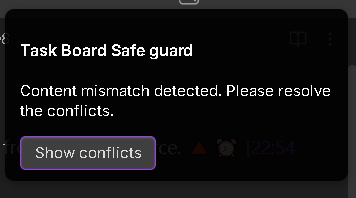
When you will click on the “Show conflicts” button the Content compare modal will open as show below :
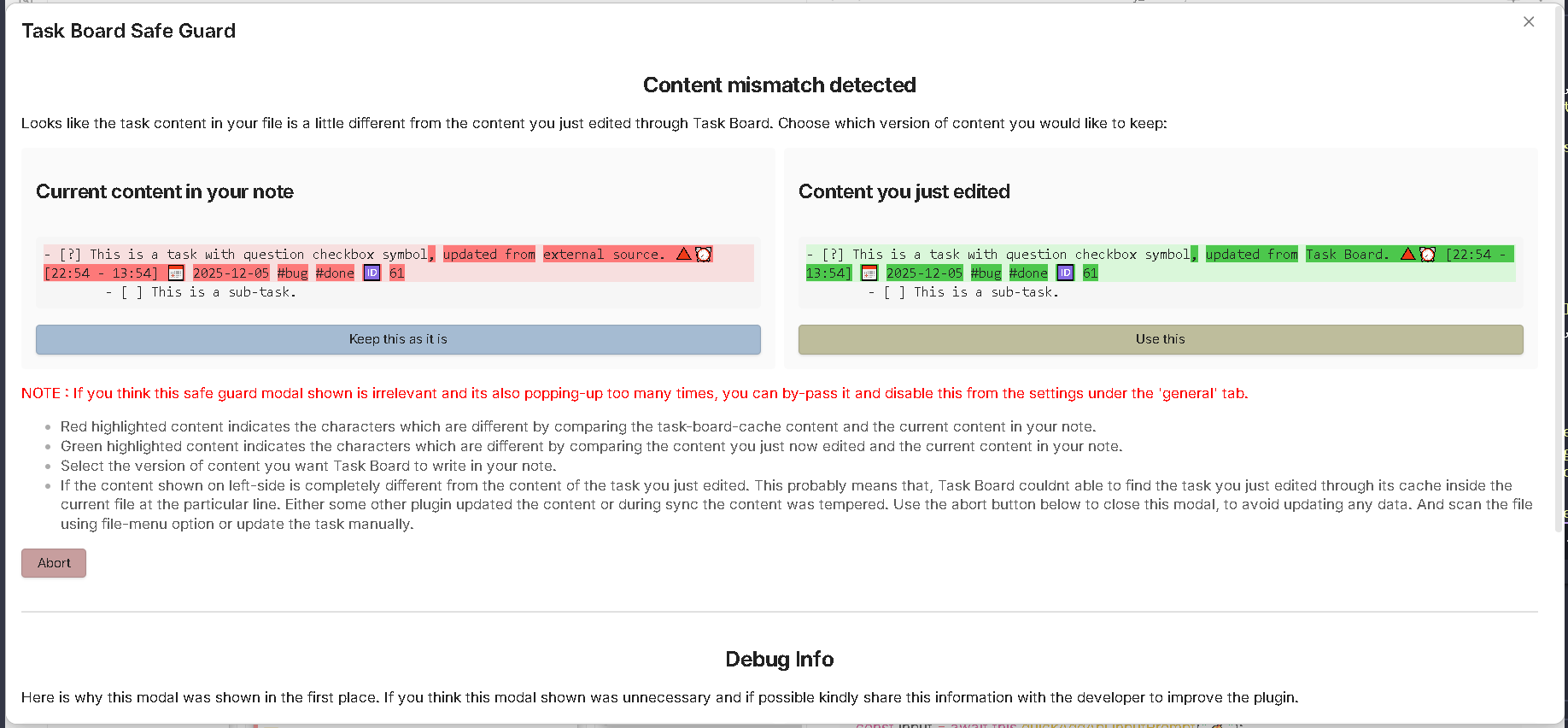
As you can see from this example shown in the above image, we have the task content on the left, which is the current content in your note right now.
When you were editing the task from the Task Board’s Task Editor, the note’s content was updated by some unknown entity at that exact moment.
That is, we have three versions of your task content right now…
Initially, the content inside the note was like this :
Version 1 - Old content in your note
- [?] This is a task with question checkbox symbol. 🔺⏰ [22:54 - 13:54] 📅 2025-12-05 #bug #done 🆔 61
Then you used the Task Editor to update this task content to look something like this :
Version 2 - Content updated through Task Editor
- [?] This is a task with question checkbox symbol, updated from Task Board. 🔺⏰ [22:54 - 13:54] 📅 2025-12-05 #bug #done 🆔 61
But, when you were editing this content inside Task Editor, the note was updated, maybe through an external service or by some other plugin (lets call it an unknown entity), at the same time to look like this :
Version 3 - Content updated by unknown entity
- [?] This is a task with question checkbox symbol, updated from external source. 🔺⏰ [22:54 - 13:54] 📅 2025-12-05 #bug #done 🆔 61
So, you can clearly see the difference that, the content inside your note is different than what Task Board expects it to be, when it tries to save your changes from the Task Editor. Because of this inconsistency when you try to update the content with what you have changed through the Task Editor, this safe guard feature holds its operation to get a confirmation from you, so you can decide which content you would like to keep inside your note.
Modal sections
Content comparison section
The first hals of this modal will be the actual content where you will see, what content is causing the mismatch.
Current content in your note : This section compares Version 1 with Version 3
On the left side, you will be shown what is the current content inside your note actually is. In reality, this content was supposed to be what you saw before you started editing the task. But, the red highlighted part shows what has been changed in the content by the external source in the absence of your attention. The highlighting might not be always that accurate, but from the above example image we can see that the task title was changed by adding the following extra content : “, updated from external source”
Below this section you will see a button, Keep this as it is, so you dont overwrite the changes made by the unknown entity with your Task Editor’s changes. Note that, if you click on this button, your changes from the Task Editor will be lost.
Content you just edited : This section compares Version 1 with Version 2
On the right side, you will be shown what changes you have made to the original content of the task through the Task Editor. In the above example, we clearly see that the following content was added to the task title : “, updated from Task Board”
Below this section you will be provided with a button called Use this. This will going to overwrite the task content inside your note with what you have updated through the Task Editor.
Pro tip
Usually, you will like to click on Use this button, because you are expecting to change the content inside your note with what you have updated through the Task Editor.
This Content Compare Modal is basically shown to keep you aware that your note content was changed while you were editing the task content through the Task Editor.
Debug info section
This section has been temporarily provided to help you understand why the safe guard feature popped up in the first place and to also verify whether this Safe Guard feature genuinely detected a real content conflict or if it was an false-alarm.
Under this section you will see the the UI something like this :
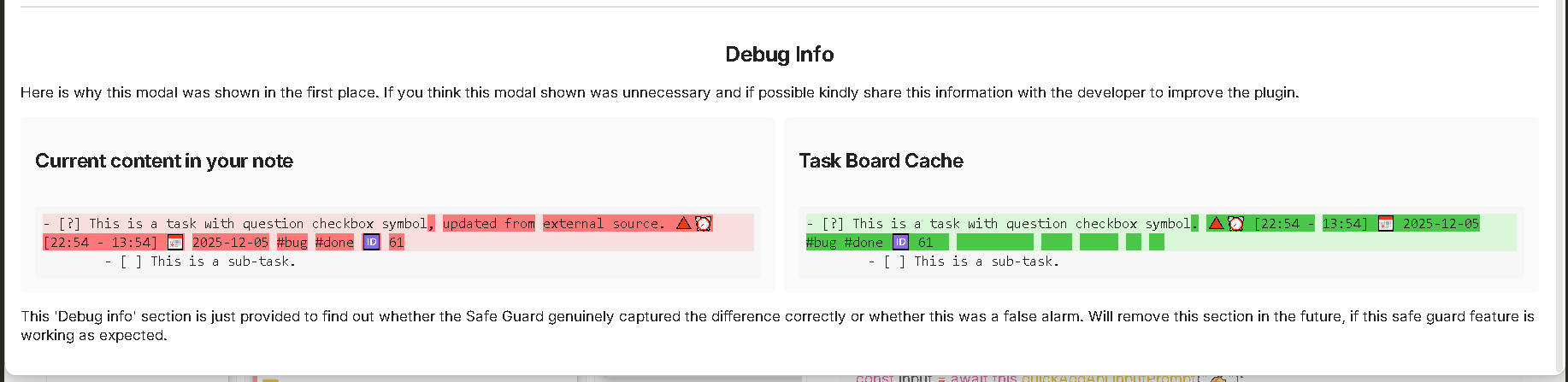
This section will show you what is the current content right now inside your note (this is the content which might have been updated by the unknown entity) on the left side.
And on the right side, it will show you the content which Task Board cached it last time. This is the content you started editing inside the Task Editor.
If the content on left and content on right are genuinely different, that means Safe Guard feature correctly captured the conflict. If they are almost safe with just the white spaces mismatch issue, then please report this issue to the developer to improve this functionality, so this Safe Guard feature do not pop up all the time.
Points to remember
- The color coding might not be that accurate to show you the exact difference in the content comparison. the red color highlighting means the content mismatch between the task board’s cached content and the content updated by the unknown entity. And the red highlighting means, the content mismatch when compared between the content you just edited through the Task Editor and the task board’s cached content.
- Even though we are assuming here that the “unknown entity” might have updated the content parallelly when you were editing the content inside Task Editor. This is not always true. It might also happen that, Task Board cached the content and after that you might have manually updated the content and Task Board didnt got the chance to scan this updated content for some reason. This will also cause the content mismatch.
- The “Keep this as it is” button and the “Abort” button will do the same thing, that is stop any further operations from Task Board side so you can manually resolve this content conflict.