Task Editor
This is a custom component provided by this plugin which can be opened inside a modal or as a tab or inside a pop-out window as well..
This task editor helps you to edit your tasks or add more properties to your task easily without opening the markdown file.
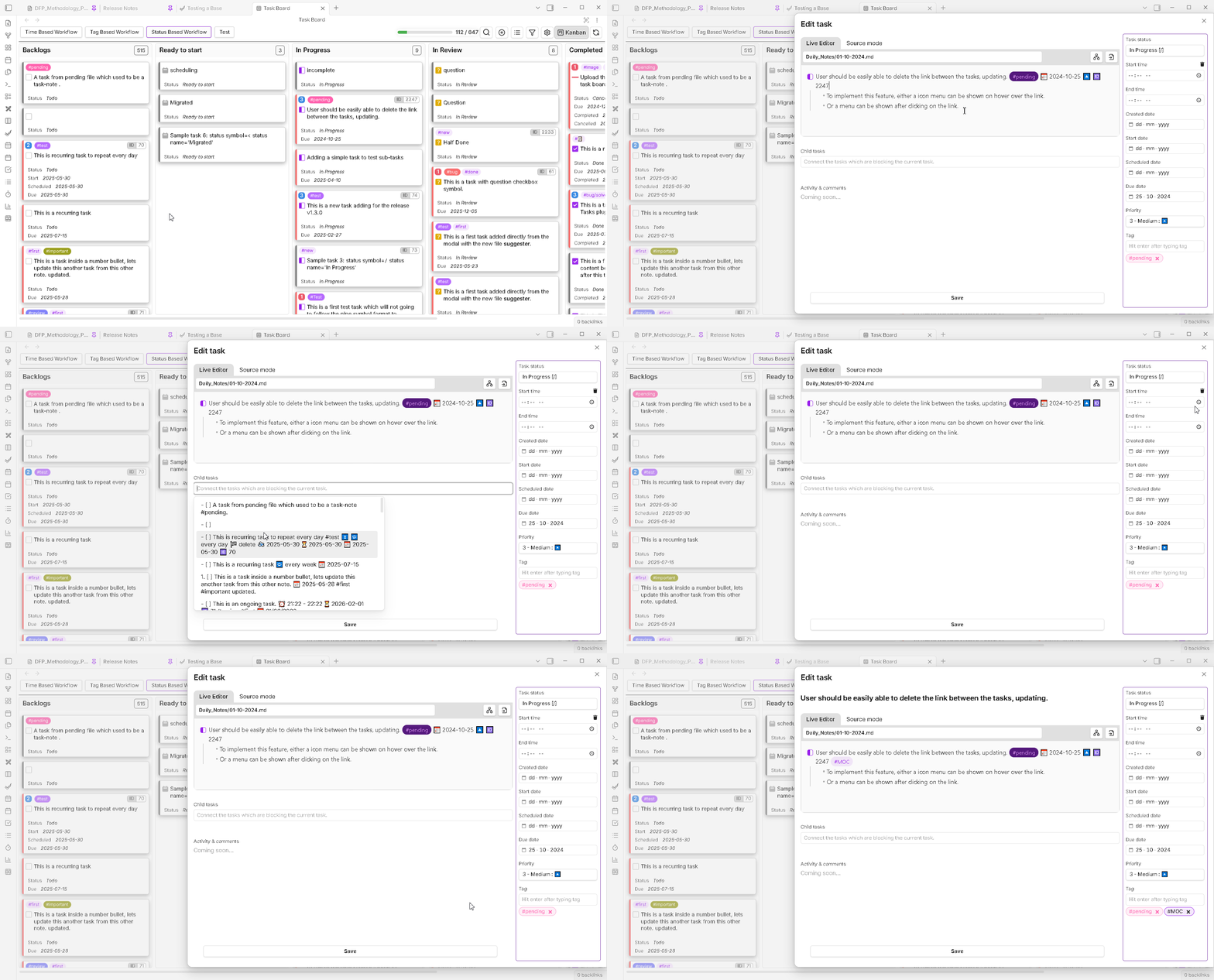
Sections of the Window
Left Section
-
Title Input Field : (only for task-note type of tasks) : On very top there will be a text input field to enter the title of the task. This can be a complete elaborated paragraph or a simple line. In Kanban methodology and also Task Board recommends to give a short title to your tasks and you can elaborate further about the task in the description section.
- Live editor / Source mode : This is a section where you can see two button to change the view mode in a Section tab.
- The default section will be the Live editor, which is exactly same as the Obsidian editor. This has been integrated in this task editor to help you enter the content as you would normally enter them inside your notes. So, adding attachments, embeddings, and other markdown formatting should work out of the box. Note that, some features from other plugins, might not work in this embedded editor.
- The second button is Source mode, which will open a section with a Text Area box, in which you will see the raw content of the task. This is similar to the “Source mode” of Obsidian editor.
- This editor section, in general, will help you to add the sub-tasks and description for the task the way you normal add it inside your notes, so you get the same experience.
- Please note that, even if you add any line without indentation, it will be automatically get indented by one level according to the task format.
- Child tasks : Below the editor, you will see a smart text input field, where you can start typing the title of any existing task in your vault and this text input field will show you suggestion for the matching tasks. This will help you to add child tasks to this current task which you are editing.
- Once you select any task from the suggestion, that task should be added below this text input field as well as the depends-on property should be added to the task inside the editor above.
Right Section
This right side panel is all about adding different properties to your task. You will find different types of input field, so you can enter the values to those properties easily. Also, this properties will be added in the format you have selected in the settings (applicable for inline-tasks only).
-
Task status : This drop-down field, will help you to easily change the status of the task. Here you will see all the status options which you have configured inside the custom statuses setting.
- Task Duration : There are two input fields to set this property of the task, the “Start time” and the “End time”. This feature will help you, if you are using Day Planner plugin, to plan your every day timeline.
- Start Time : Enter the time when you are planning to complete your task, this is the time when you will start doing the task.
- End Time : By default, when you will select the start time, this field will be automatically populated with an one hour incremented value from your Start Time. You can easily change this value, to change the duration of the task.
-
Task Due Date : This is a date field. When you will click on this input field, you will be presented with the calender menu to select your date for scheduling the task and the value will be auto populated in the input field, which you can change later as well.
-
Task Priority : This is a Drop Down input field, where you will be able to select the priority for the current task. Currently there are fixed 5 priorities you can give. In future releases this feature will be enhanced to give your custom priority values and increase the priority options.
- Task Tag : This is a special type of text input field. After you type the tag name/string, you have to press on the
Enterkey to register the tag. When you will hit Enter, you will see the tag has been attached to the task and also the color of the tag, if you have set your own Custom Color Tags. So, you will get get a preview of how your tags will look on the board below this input field.
Save Button
After you have made all the changes, remember to press on the Save Button, which you will see at the bottom of the Left Section. None of your changes will be saved until you click on this button.