Marking Task Complete
This, although being a simple feature, it does a real-time changes to the source note.
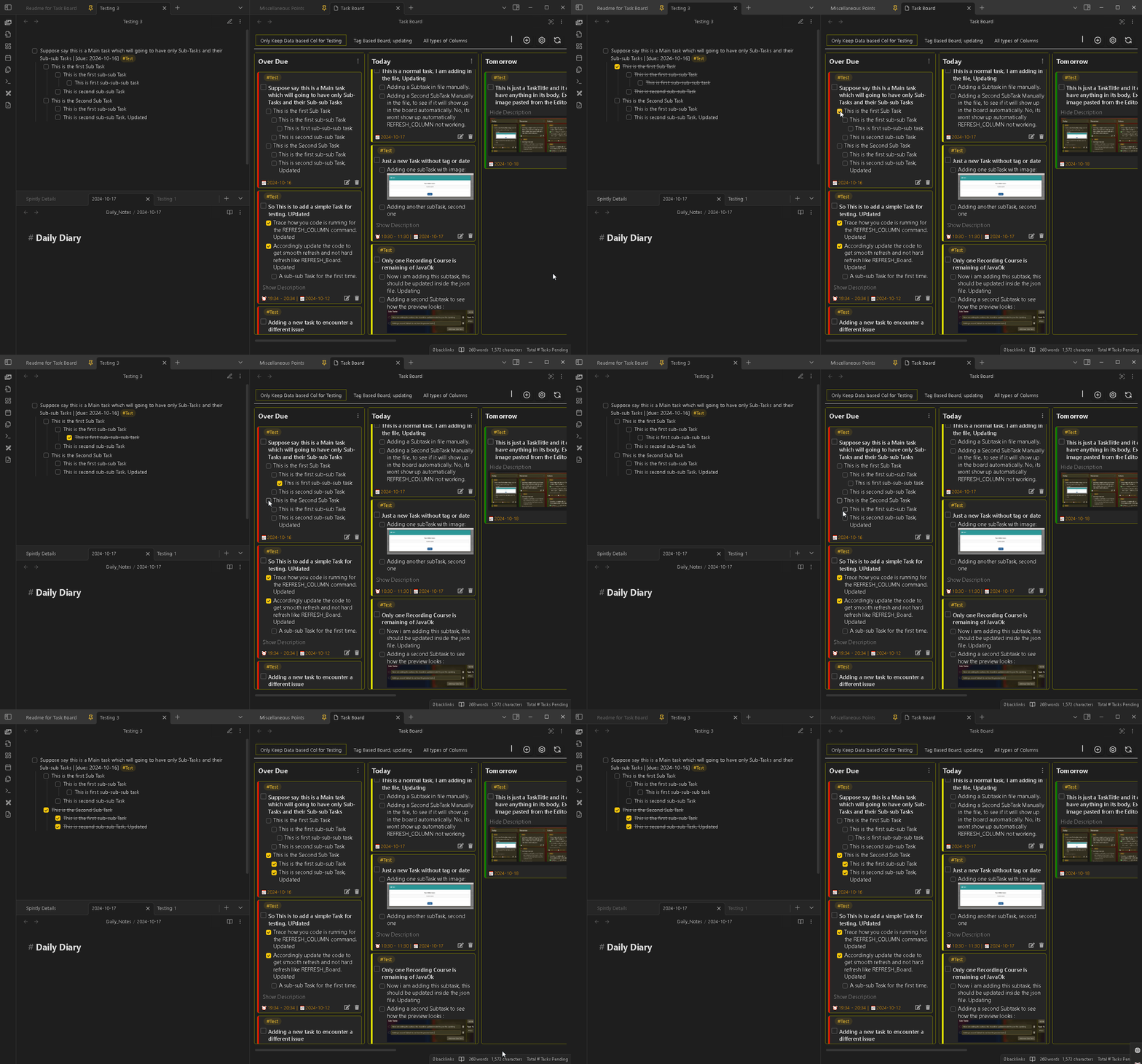
There are basically three things happening when you click on the main checkbox of any Task Item Card :
- The next status is calculated
- Task content is updated in your source note
- Task card moves to a different column
1. Calculating next status
We have a setting called as Custom Statuses. In this setting you basically configure which type of inline-tasks checkbox symbols Task Board should scan. While configuring this, you also add the frontmatter key name, which will be used for the task-notes. But the config which we are interested right now is the “Cycle to the following status” field in this Custom statuses setting.
So, what basically happening here is, you are telling Task Board, when you will click on any task item with a specific checkbox status, lets say “>”. Then, that checkbox symbol/status should change to a specific symbol/status, lets say “/”. This is applicable to both kinds of tasks. And this gives you a nice automation feature, where the task automatically moves from one status to another without you have to manually change it.
2. Updating Markdown file
Then the plugin will find the source note for this task, whether its a inline-task or a task-note and then it will respectively either updates the checkbox symbol or it will update the frontmatter property.
3. Task Card moves
Finally, Task Board verifies that the task has been properly updated in the source note and it also scans the updated note to confirm the same and finally updates the board view to indicate that the operation was confirmed. Till the above two steps are happening in the background you will also notice an indicator shown in the footer of the task card. As shown in the below image : 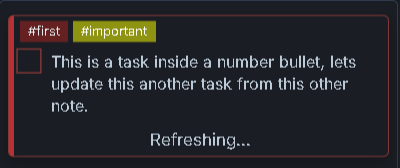
After the board refreshes, the card might move to a different column, may be say “Completed” type column, based on the column criteria. This is because, the task no longer satisfy the criteria for it to be shown under its original column, hence it will be now shown inside the completed type column (or any other column based on the criteria).