Filters for Scanning
You can use this filters, to restrict the plugin from scanning certain files and folder and also tasks which has specific tags. Or you can also tell the plugin to only scan specific files and folders and tasks with a specific tag on them.
There are four types of filters you can use, as explained below.
Besides the below four Filters for scanning, there is additionally one more feature, which acts like “Filters for scanning” (especially for inline-tasks). Read more about it here : Custom statuses.
Filters for Tags
This filter can be used, when you only want to scan tasks which has certain tags on them. Or you don’t want certain tasks to be get scanned, when they contain certain tags.
Tag Names
To enter the values without any mistakes, a new modal has been integrated which you can open using the Configure button. This modal will contain an text input field, which will also provide you with suggestions, which are basically the tags you have previously used throughout your vault.
When you will select any specific tag, it will be added to the list below the text input field. As can be seen from the below image :
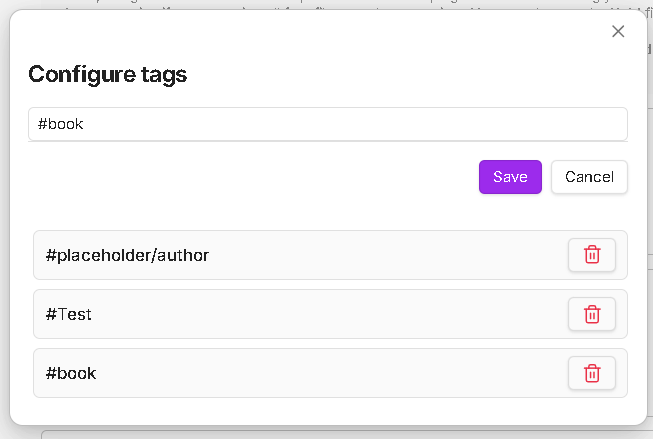
Using the delete icon, you can remove the specific tag from the list.
Always remember to click on the save button once you are happy with your choices. After you click on the save button, all the list items will be shown as capsules in the main setting. Now you should select the filter polarity…
Filter polarity
This setting tells Task Board what do you want to do with the entered tags, or how these tag filters should be used. There are three options for this polarity :
-
Only Scan This : The plugin will only scan the tasks which contains the tags entered in the input field above.
-
Dont Scan This : The plugin will not going to scan any task, which contains any one of the tag mentioned in the input field above. All the other tasks will going to get scanned, if those tasks doesn’t contain any tag mentioned by you in the input field.
-
Disable : Keep this filter disabled. You can use this to temporarily keep this Tags filter disabled without removing all the tags you have configured above.
Only this single filter is content-level filter. All the below three filters are file-level filters. Which means, your content is first read by this plugin to find out which tasks have (or dont have) the specific tags you have configured.
But, in the below three settings, Task Board will scan (or dont scan) the file, if the criteria is satisfied or not.
I am planning to remove this filter from the “Filters for scanning” setting, so we can only have the below three file-level filtering. And, then using the advanced view filters, you can anyways filter the tasks which you dont want to see on your boards.
But, if you think this is a wrong decision and you do use this specific filter, kindly create a request to inform the developer.
Filters for Frontmatter
This filter allows you to scan files based on their frontmatter properties, giving you more control over which files to include or exclude from scanning.
Frontmatter Properties
Similar to the above filter for tags, in all these filters you will be provided with the suggestions modal, so you can select the values correctly without any mistake. For configuring the frontmatter properties, you should keep the following point in mind :
- Enter the frontmatter property name and value you want to filter in the following format :
["property-name": property-value]. - For example :
["author": J. K. Rawlings]. (The property name should be enclosed within double-quotes) - If, incase you cannot able to find the property name-value pair you are looking for in the suggestion. Simply select any one of the suggestion and edit it and then hit enter so that the new entry is added to the list. And you can remove the old selected entry from the list.
- Confirm your configuration and click on save button.
Filter polarity
I guess, I dont need to explain about this again. This will work same as explained for the “Filters for tags”:
-
Only Scan This : The plugin will only scan files that match the specified frontmatter properties.
-
Dont Scan This : The plugin will not scan any files that contain the specified frontmatter properties.
-
Disable : Keep this filter disabled to scan all files regardless of their frontmatter.
Example Use Cases
- Scan only files with
status: activein their frontmatter => Filter =["status": active]and Polarity =Only scan this - Exclude archived files with
archived: true=> Filter =["archived": true]and Polarity =Dont scan this. - Filter by project name or category
- Combine with other filters for precise control
Filters for Files
The most commonly used scanning filter, which will help you to decide which files to selectively exclude or include from the scanning process.
File Names
Enter all the file names with their full path in the suggestion modal which can be opened using the Configure button. Then, start typing the note name which you want to add to the list. Try to select the closest option from the suggestion and then edit it, so you dont make any mistakes while selecting the file path along with the name.
Click on save button, once you are happy with the list of files you have selected.
You can use Regular Expression while setting the names of the files.
Filter polarity
Again, as explained previously for, this drop-down helps to set the polarity or behavior in which the above files you have configured should be used. :
-
Only Scan This : If you have entered few file names and you have set this polarity for this filter. Then the plugin will scan only these files and rest all of your files will be ignored. The plugin will keeps tracking these files for any changes and will detect if the tasks has been updated or a new tasks has been added. Either in real-time mode or on periodic basis.
-
Dont Scan This : If you have selected this polarity, then the plugin will not going to scan these files, whenever you will do a full vault scan or when you going to make any changes to any of these configured files. All the rest of the files from the vault will be scanned and tracked for changes. Use this feature, if there are some private files/tasks you don’t want to see on the Task Board.
-
Disable : This option will help you to temporarily disable this specific filter. If for some reason, you also want the entered files to be get scanned or want to scan all other files other than the entered files. Then you can disable the filter, so the plugin can scan all the files from your vault.
Filters for Folder
Now, if you want to add all the files from a specific folder to be scanned or not scanned, then you can make use of this filter to simply add the folder names to the list and set the filter polarity accordingly.
Folder Names
Same as the “Filter for files”, enter the path of the folder or sub-folders correctly using the suggestion provided in the modal and then edit it as required.
You can use Regular Expression while setting the names of the files.
Filter polarity
The polarity again works similar to the one in the above setting.
-
Only Scan This : The plugin will only scan the files inside the folders whose names has been entered by you in the text field.
-
Dont Scan This : The plugin will not scan any files under the folders whole names has been entered in the text field and also the sub-folders inside them. It will scan all the files in all the other folder and in the parent directory of the vault, unless you have given the names of the files from the parent directory.
-
Disable : The Filters for Folder wont be applied and the plugin will scan all the files from all the folder.
Points to remember
Please note that, if you have configured a folder inside the “Filters for folder” as say ‘New folder/’ and you dont want any of the files from this folder to be get scanned, then you will set the polarity of this filter to
Dont Scan this.And, let assume, there is a file from this ‘New folder/’ which you want Task Board to get scanned. Then you should enter that file inside the Filters for file and set the polarity of this filter to
Only scan this. Now, using this combination, you have set the Task Board to only scan the specific file from that folder and ignore all the rest.But, note that, all the other files from your vault will not be scanned now, because the “Filters for files” will take the priority.
Hence use the filter after doing some logical math, if your requirement is complex. For simple cases, the filters will work fine. You can simply use only one of the filter above and keep few files for scanning or not scanning. OR put all your files in one folder and set the status to not scan any files from this folder. Or you can also use frontmatter to selectively configure this scanning behavior for Task Board.