Scanning Modes
This feature helps you to detect the files you have modified and then scan them automatically to extract any newly added tasks or the existing tasks which you have edited.
This feature can be used in three different modes, which can be controlled using the following setting : Scanning mode.
Balanced Mode
1.9.0
This is an powerful feature of Task Board which helps you to get the latest information of your vault tasks inside the Board. The plugin uses optimized way to scan the modified files and show the edited task content on the board.
This is the default set by this plugin. It is designed very efficiently to scan all your latest changes automatically as well as instantly.
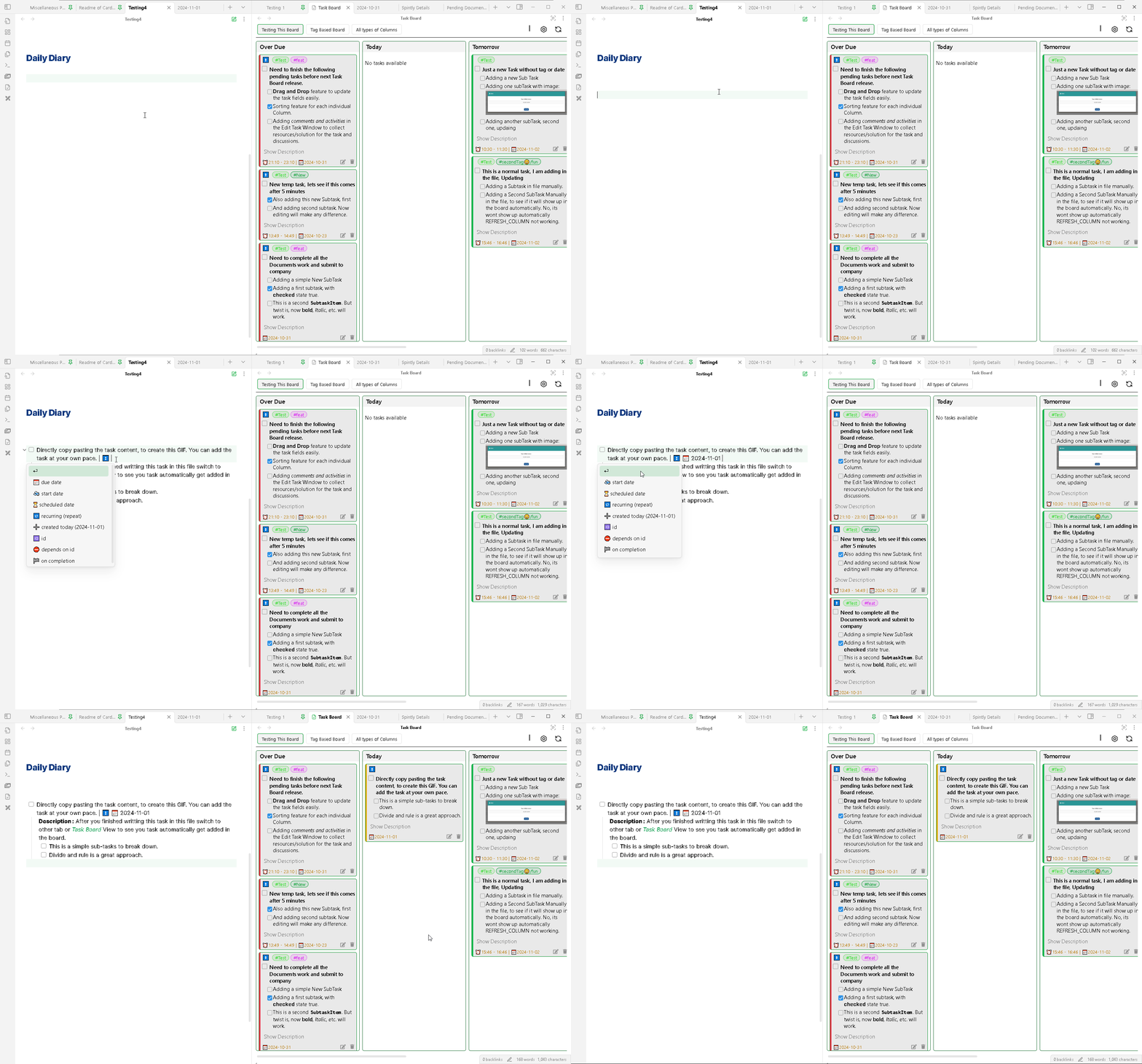
In this mode, when you will make any changes to your notes, it will be registered in the plugin. But it wont be scanned instantly, to allow you to keep editing the file and avoid unnecessary constant scanning. Once you have completed all your changes and when you will going to switch your focus from that edited file to any other tab or window, only then this plugin will going to scan that registered file.
This way, the plugin kind of waits for you to finish with your changes and efficiently scan the file only once.
A demo can be seen in the below GIF :
Real Time Mode
1.9.0
This is a new mode introduced to allow users to have a true real-time scanning feature of their edited content. As the name says, when you will make any changes to the task content in your notes, the content will be instantly scanned and will be updated on the board. But, there will be a delay of 1 second, which is not that significant. This delay is due to the Obsidian API, which this plugin is using to detect any file changes.
Usually, for most of the time, this mode will not be required. And it will be recommended to use it either unless very important. There are no significant downsides of using this mode, but we recommend not to unnecessarily waste your system resources in constantly scanning the files which are being edited. Because, for a single user, their focus will be only on the note editor and they will be focusing on the Task Board view, once they are finished making their changes. For this, the “Balanced” mode is sufficient.
The best use-case of this mode will be in a live shared environment. Where 2 or more users are editing the notes simultaneously and its synced live. In this case, the plugin can scan the changes instantly and the Task Board view, will act like a live dashboard of your tasks.
Manual Mode
If you like to scan the updated file manually and only refresh the board when you want. Then you can select this option in the setting.
Now, your modified files wont be scanned after you change your focus from the file you have edited or saved. To scan all your updated files, you can go on the Task Board and press the Refresh button. This button will scan all the files which you have edited recently and update the changes inside the board.