Getting Started
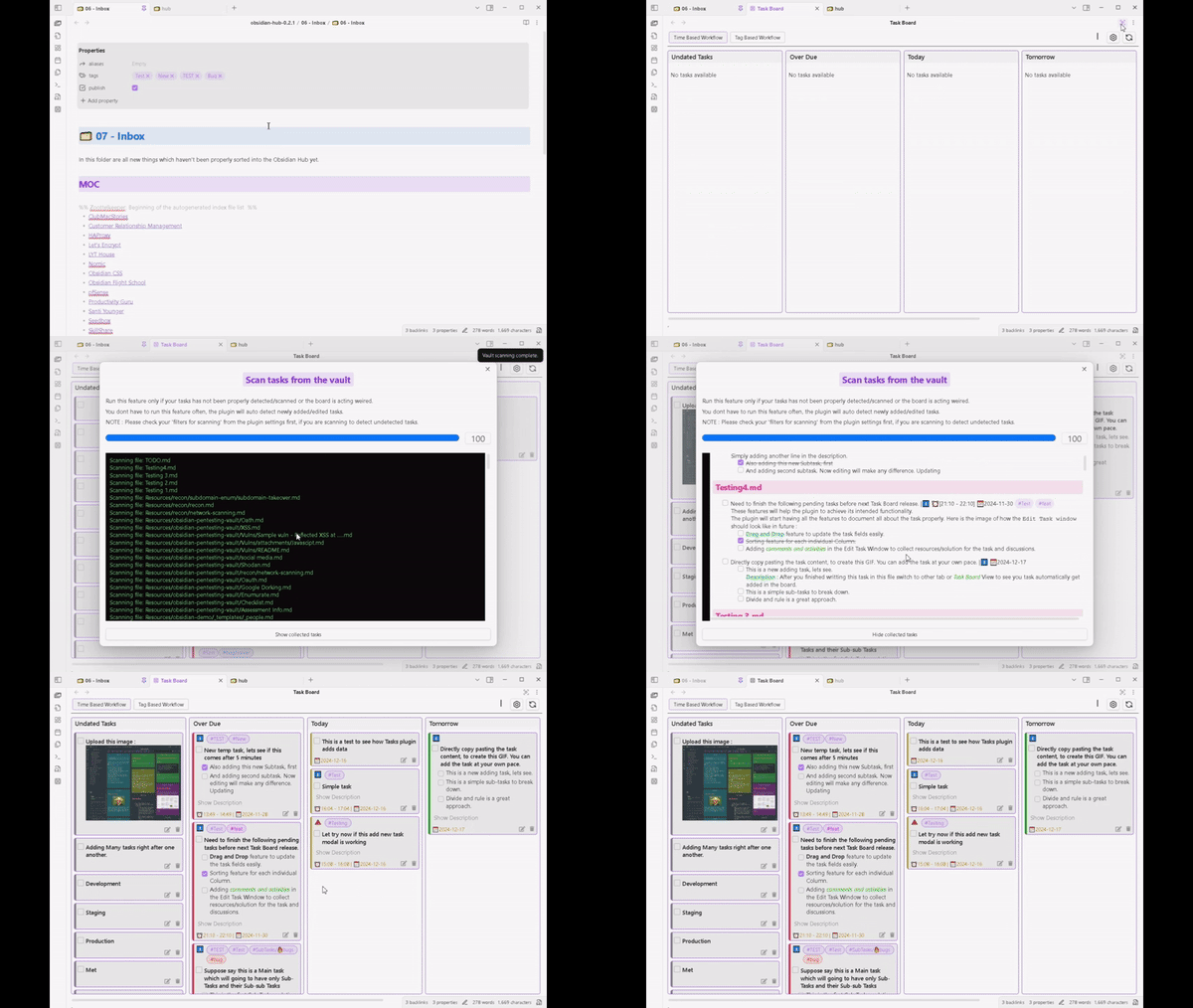
Note: in the gif above, you can see both the below steps demonstrated.
Step 1: Opening the Task Board
After proper installation, Task Board can be opened by clicking the new icon on the ribbon bar.
Task Board can also be opened by:
- Using the command
Open Task Boardfrom the Command Palette. - Assigning a shortcut for the command from the Hotkey tab in Obsidian’s general settings.
Once you open the Task Board tab for the first time you will notice there are already few predefined boards present for your convenience. Feel free to delete or edit the boards and create your own boards.
For now these boards will be empty because this plugin havent scanned any of your task yet. Move to step 2…
Step 2: Scan tasks for the first time
Click on the Vault Scanner Modal button. It is located inside the “View Header” in the top-right corner. This will open a window that can automatically scan all of the files in your vault for tasks.
Before running the scanner, you might like to use the “Filters for scanning” feature, which will allow you to skip certain files from being scanned, if you dont want this plugin to scan your those files. BTW, dont worry this plugin is also completely offline like Obsidian.
You won’t need to use this “Vault Scanner Feature” feature often. It is only for fresh install or for special cases like troubleshooting or solving any other issue.
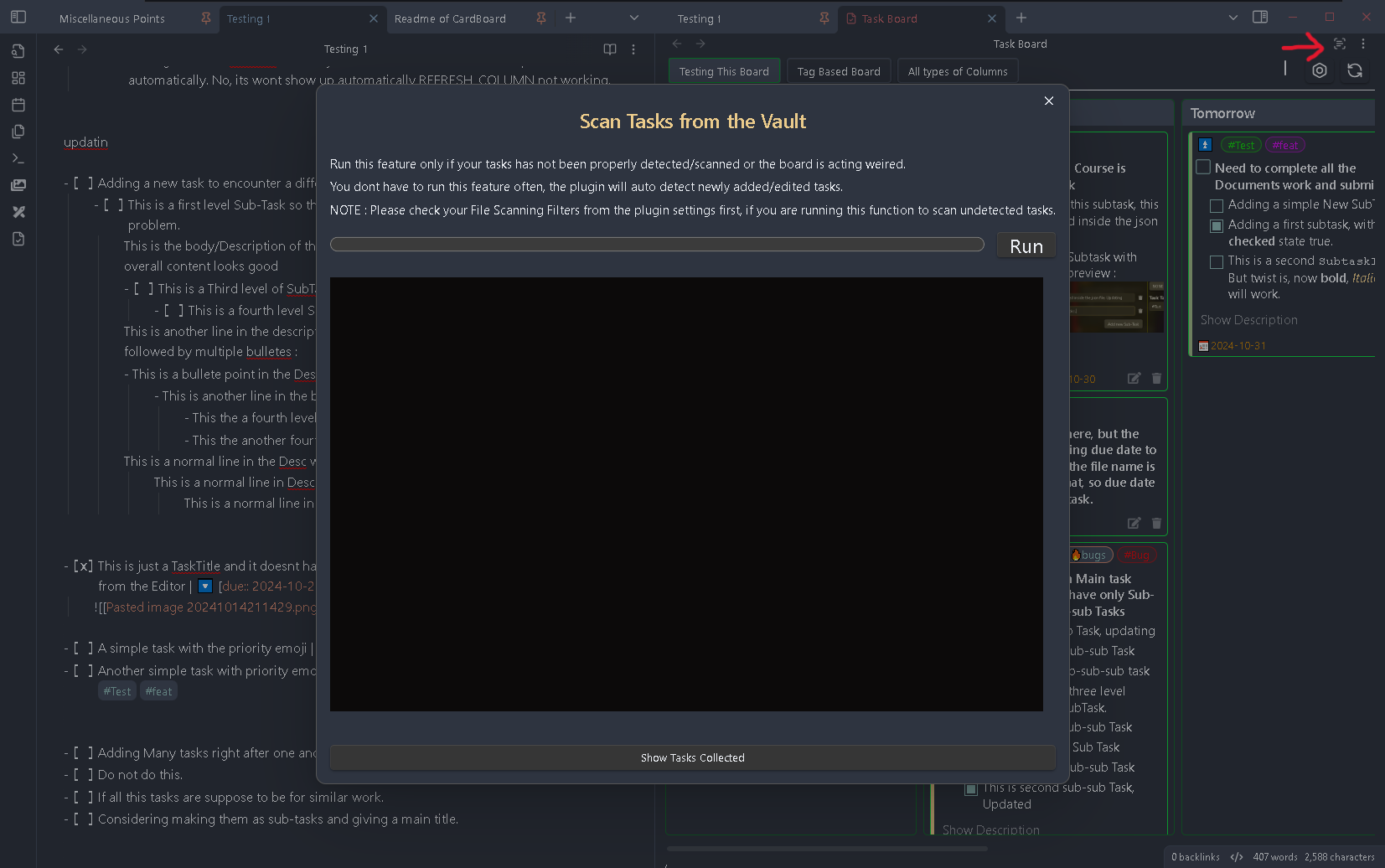
All tasks with the accepted format will be scanned and will be displayed on the board based on the specific Column Criteria.
Now you are free to explore the various features of this plugin. Will recommend to start by exploring some of the quick guides we have created in the following section : How to do anything.
Enjoy the plugin !