Drag & Drop task cards
v1.10.0
Overview
The Drag & Drop feature allows you to quickly move and reorganize tasks across your board by dragging task cards between columns. This provides an intuitive, visual way to update task properties, change statuses, reorganize priorities, update dates, and manage swimlanes without opening the task editor.
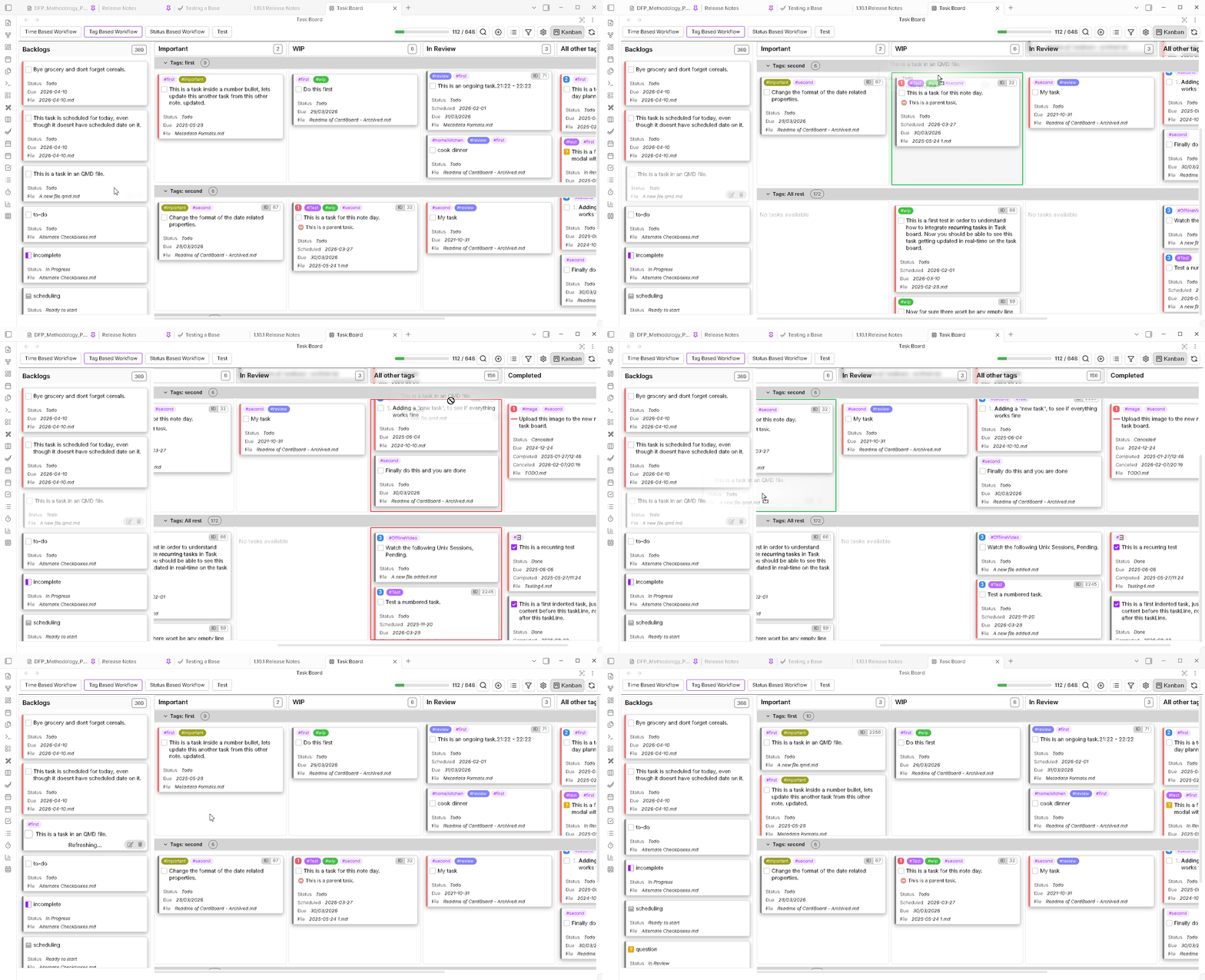
Simply click and hold a task card, drag it to another column or position, and release to instantly update the task properties based on the target column’s configuration.
Why This Matters
Drag & Drop functionality transforms Task Board from a task manager into a true visual workflow tool. Instead of:
- Manually editing each task
- Clicking through multiple dialog boxes
- Managing properties through settings
You can now:
- Organize visually - See all tasks and reorganize them with a single motion
- Update quickly - Change task status, priority, dates, or tags instantly
- Maintain flow - Stay in your workflow without context switching
- Multi-column support - Move tasks between different column types with automatic property updates
How It Works
Visual Feedback During Drag
When you drag a task card, you get clear visual indicators:
Dragged Card
- The card appears slightly dimmed/highlighted
- Shows you’re actively dragging
Target Column
- Highlights in green when drop is allowed (cursor shows “move”)
- Highlights in red when drop is not allowed (cursor shows “prohibited”)
Drop Position Indicator (for manual reordering)
- When dragging within a manually-ordered column, a line appears showing exactly where the task will be placed
- Only appears when the target column sorts by manual order
Auto-Scroll at Edges
When you drag a task near the edges of your board:
- Horizontal edges - The board automatically scrolls left/right, so you can reach distant columns
- Vertical edges (swimlanes only) - The board automatically scrolls up/down between swimlanes
- Scroll speed - Adjustable via Settings under
Drag Auto-Scroll Edge Percent
This makes it easy to move tasks to columns that aren’t currently visible.
Drag & Drop Operations
The behavior when you drop a task depends on both the source column type and target column type.
Same Column - Reordering
Source = Target, same column
When dragging a task within the same column:
- If column uses manual order sorting → Task order changes (see position indicator)
- If column uses other sorting → Task stays in its sorted position
- Swimlane changes → If swimlanes are enabled and you move the task to a different swimlane row, the swimlane property is updated
Across Named Tag Columns
Source = Named Tag, Target = Different Named Tag
When moving between tag-based columns:
- Old tag is removed from the task
- New tag is added to the task
- Task reappears in the target column
- If swimlanes enabled → Swimlane also updates
Example: Moving a task from #work column to #personal column removes #work and adds #personal tags.
To Status Columns
Source = Any Column, Target = Status Column
When moving a task to a status column:
- Task status is updated to the target column’s status value
- Task reappears under the new status
- Other properties (priority, date, tags) remain unchanged
- If moving from completed → other columns, task is marked as “TODO” (incomplete)
Example: Moving a task to the “In Progress” status column marks it as “In Progress” in your markdown.
To Priority Columns
Source = Any Column, Target = Priority Column
When moving to a priority column:
- Task priority is updated to the target column’s priority level
- Task reappears in the target column
- If moving from completed → priority column, task is marked as “TODO”
Example: Moving to “High Priority” column sets that priority on the task.
To Dated Columns
Source = Any Column, Target = Dated Column
When moving to a dated column, two scenarios apply:
Scenario 1: Fixed Date Column (e.g., “Today”, “Tomorrow”)
- Date is automatically set to the column’s date
- No prompt appears
- Task instantly moves
Scenario 2: Date Range Column (e.g., “This Week”, “Next Month”)
- A date picker modal appears
- You choose the specific date within that range
- Task is set to that date
If moving from completed column → dated column, task is automatically marked as “TODO”.
To Completed Column
Source = Any Column, Target = Completed/Done Column
When moving a task to the completed column:
- Task is marked as done with completion symbol (✓ or x)
- Completion date is recorded
- Task appears in the completed section
- Other properties remain unchanged
To Named Tags Column (from another type)
Source = Different Column Type, Target = Named Tag Column
When moving from non-tag columns (status, priority, dated) to a tag column:
- Target column’s tag is added to the task
- If column sorts by manual order → Task position is also managed
- Swimlane change happens if applicable
- Task is marked as “TODO” if from completed column
Restrictions on Some Columns
Certain columns do not allow dropping tasks:
| Column Type | Allow Drop | Reason |
|---|---|---|
undated | ❌ No | System column |
untagged | ❌ No | System column |
otherTags | ⚠️ Limited | Only from other otherTags columns |
allPending | ❌ No | Complex for now |
| Dated (multi-day) | ⚠️ Limited | Prompts for specific date within range |
System columns like “Undated”, “Untagged”, and “All Pending” exist to automatically contain tasks. Manual drops aren’t allowed because the system needs to maintain their integrity.
Drag & Drop with Swimlanes
If your board uses swimlanes, drag & drop becomes even more powerful:
Within-Column Swimlane Change
- Drag a task to a different swimlane row in the same column
- Task’s swimlane property is updated (e.g., different person, status, custom property)
- Task reappears in the new swimlane row
Cross-Column with Swimlane
- When dragging to another column with swimlanes enabled
- You can drop in a different swimlane row
- Both column type update AND swimlane update happen
- Task immediately reflects in the new column/swimlane position
Drag & Drop with Manual Ordering
When a column is configured with “Manual Order” sorting:
- A drop position indicator line shows exactly where the task will land
- You can place tasks in any order regardless of other properties
- The order is preserved until you manually reorganize again
- Cross-column reordering - If the target column also uses manual order, the task is added to that column’s manual order sequence
Manual ordering overrides automatic sorting. If you manually order tasks, then change column properties, the manual order is respected. Be aware that sorting properties like priority or date won’t automatically reorganize manually-ordered tasks.
Performance & Auto-Scroll
Auto-Scroll Configuration
The distance from the edge that triggers auto-scroll is configurable:
- Go to Task Board Settings → General
- Find “Drag Auto-Scroll Edge Percent”
- Set the percentage (default: 20%)
- Higher % = larger edge region triggers scroll
- Lower % = you need to get closer to edge to scroll
Auto-Scroll Behavior
- Scroll starts automatically when you approach edges during drag
- Speed is consistent (10px per scroll tick)
- Works horizontally for all boards
- Works vertically for swimlane configs
- Stops immediately when you release the task
Keyboard & Accessibility
- No drag modifiers required - Just click and drag
- Visual color indicators - Color-blind friendly (tested with red/green)
- Cursor feedback - Changes to indicate allowed/not-allowed
- Cancel drag - Press
Escor click outside to cancel (no update happens)
Best Practices
- Use manual order for flexible columns - When you want full control over task positions
- Understand column types - Know what updating each column type does before dragging
- Watch for visual indicators - Wait for the green “allowed” highlight before dropping
- Use swimlanes strategically - Combine swimlane changes with column changes for rapid task reorganization
- Auto-scroll for distant columns - Let the auto-scroll take you to far columns rather than scrolling manually
Common Workflows
Priority Reassignment
- Drag task from current priority column
- Drop in “High Priority” column
- Task instantly updates priority
Status Update
- Drag task from “Backlog” column
- Drop in “In Progress” column
- Status changes, task moves to new position
Date Management
- Drag task to “This Week” column
- Date picker appears
- Select specific date
- Task scheduled for that date
Team Assignment (via swimlanes)
- Drag task across swimlanes to different team member
- Swimlane property updates
- Task appears under new team member
Troubleshooting
Drop not working (column stays red)
- The target column type doesn’t accept drops from your source column
- Try dropping in a different column type
- Check the restrictions table above
Position indicator doesn’t appear
- Target column doesn’t use manual order sorting
- The column sorts by date, priority, status, or other criteria
- Drag to a manually-ordered column to see the indicator
Auto-scroll too slow/fast
- Adjust “Drag Auto-Scroll Edge Percent” in settings
- Increase % to help reach columns faster
Task properties not updating
- Confirm your changes were saved by closing and reopening Task Board
- Check the task’s markdown to verify the change was written
- Use Vault Scanner to resync if unsure
Learn More
- Kanban Swimlanes - Organize by swimlane while drag & dropping
- Task Formats - Understand task structure
- Column Types - Learn about each column configuration
- Settings - Configure drag & drop behavior