Adding a New Task
There are a couple ways to add tasks to a board:
- Manually typing it within a markdown file: Typing inside note
- Via Task Editor (accessed via the “➕” button on the top right of the board itself or via Obsidian’s Command Palette.
Below sections will explain each of the method in detail…
Manual method
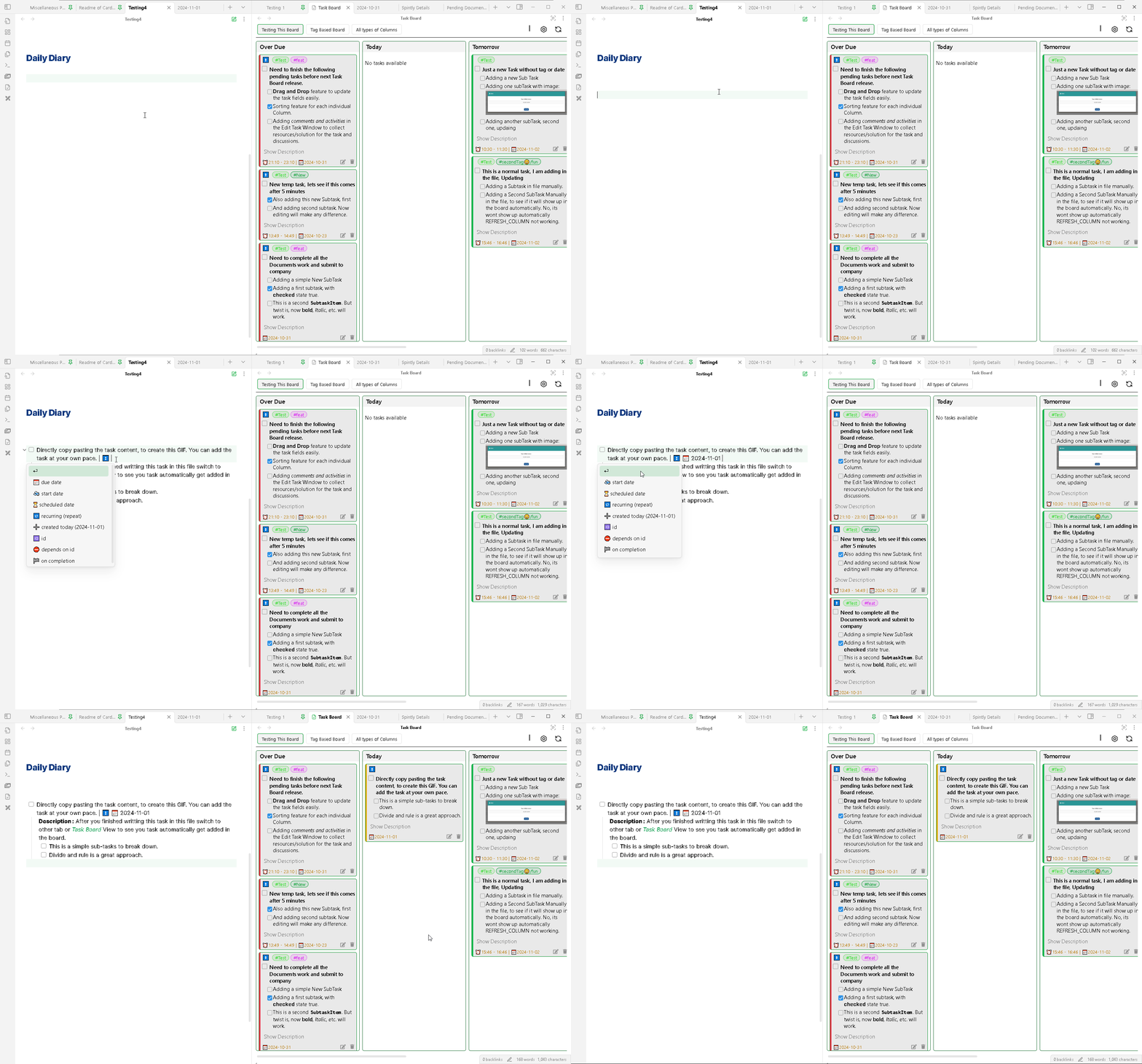
This is a simplest, old fashioned method, how you normally add a task to any file. Simply create a supported checkbox Item and start writing your task after the checkbox pattern. On a new line you can add more sub-tasks or description for the task as required.
To understand the supported format for adding a task see this : Supported Task Format.
Also ensure that the file is allowed for scanning and you have not applied any scanning filters for files, folder or tags.
Once you are done with adding all your content, just switch your focus from the current editor to the Task Board View and your task will be automatically added to the Task Board.
Using Task Editor
This plugin provides a custom special component which helps to add a task efficiently. This component has the following features :
- Add task properties easily using custom input fields.
- Add task to a pre-defined note or using Quick Add plugin integration, basically add it wherever you want.
- Pre-populate specific properties. (coming soon…).
To learn more about this component, read the following wiki : Task Editor.
Using Column Buttons
Upcoming Feature…
You will be able to add a task to a specific allowed column using a button. This will automatically apply the required properties to the task so that it can appear within that column/board.