Advanced Filter
v2.0.0 (under development)
Filters are a very essential part of any management/organization tool. It helps to collect related items together or very useful when we are trying to search for something by narrowing down our result using various criteria which are based on the properties of that item, in this case the task.
Task Board provides a very advanced filter which consists of multiple quick filers. You can enable/disable these filters whenever you want, save them for later use or share them across other boards in your vault.
Terminology
Before moving with the actual understanding of this advanced filter, first, lets get ourselves familiar with the various terms we use in this plugin to indicate various parts of the “Advanced filter”. Here is a venn diagram to first understand the structure of the Advanced filter :
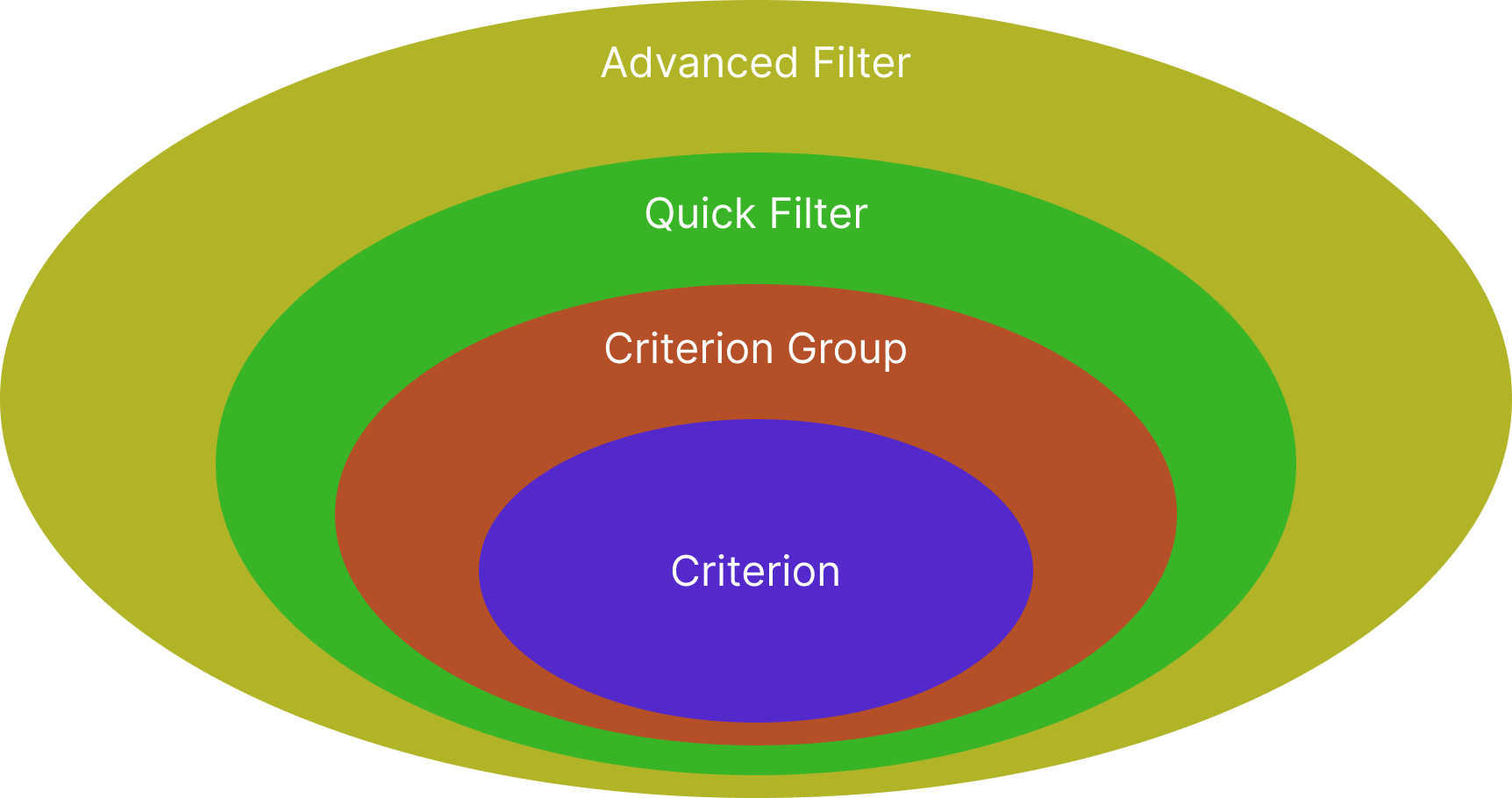
Advanced Filter => Collection of “Quick Filters”.
Quick Filter => Collection of “Criterion Groups”. Sometimes we will simply going to call it as “Filter”.
Criterion Group => Collection of “Criterion”.
Criterion => The basic rule which we will use to compare/judge a task, to decide whether it should pass through this Advanced filter or not.
And these various groups are combine the elements inside it using Boolean operations “OR”, “AND”, “NOR”. For example, multiple “Criterion groups” can be combined together using any one of the Boolean operation to form a “Quick filter”. These operations will help you to create any kind of complex logic you want to apply as a whole advanced filter.
From the UI perspective, below image will show you what each of the component inside the Advanced filter menu is called :
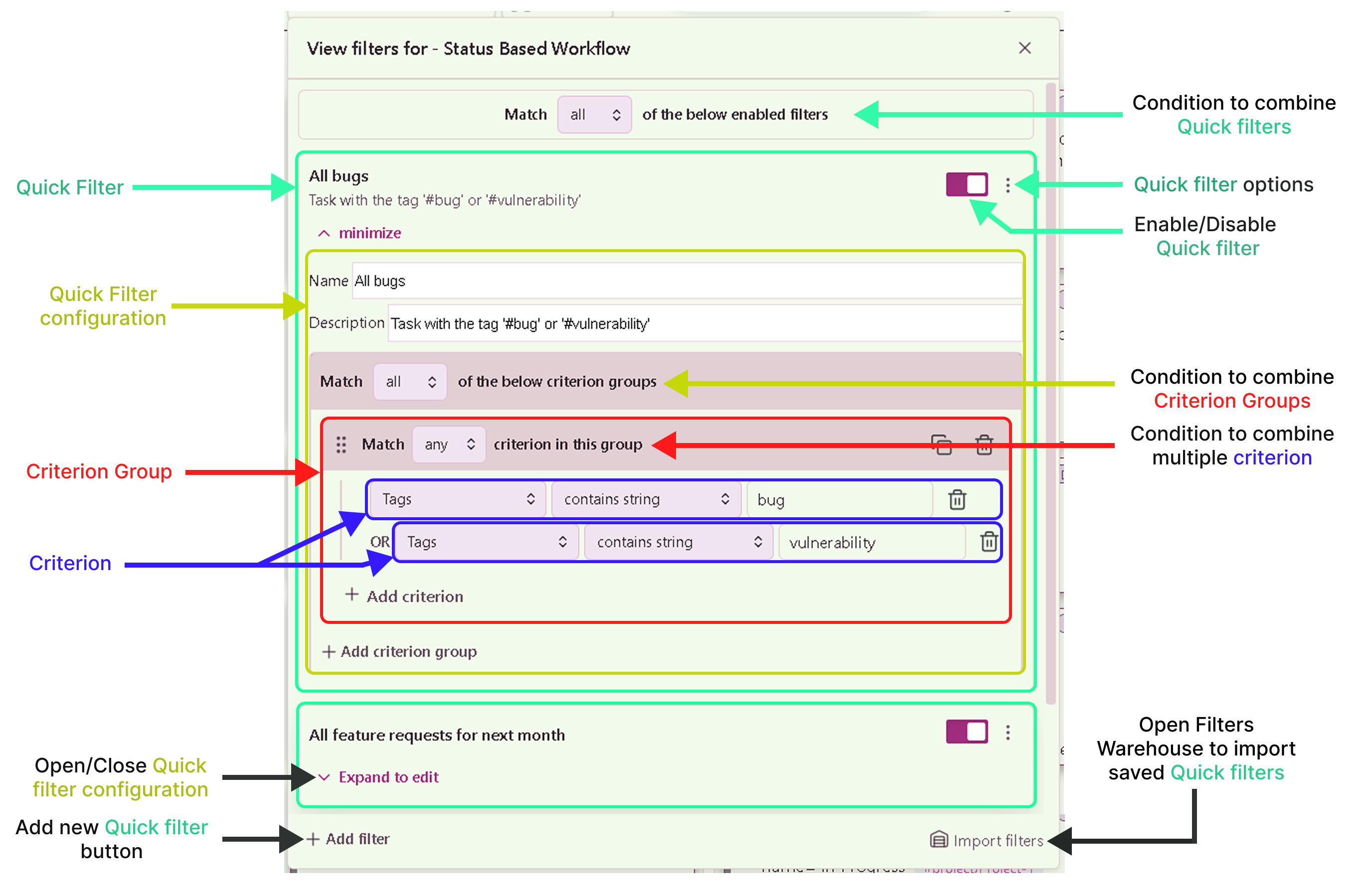
To understand all the sections in detail, please refer this wiki : Advanced filter menu
How does it work?
Lets use an example to understand how this whole “Advanced filter” feature works…
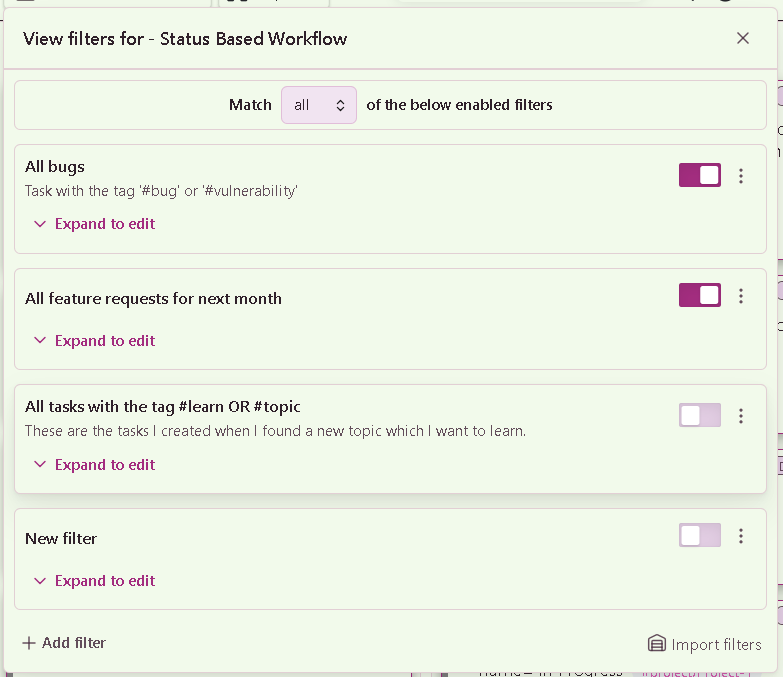
In the above image you can see that we have two active “Quick filters”. The quick filters which are in disabled state will not be considered. This helps you to quickly toggle any filter ON or OFF.
First quick filter :
Now, lets expand the first filter and lets see what configuration it contains :
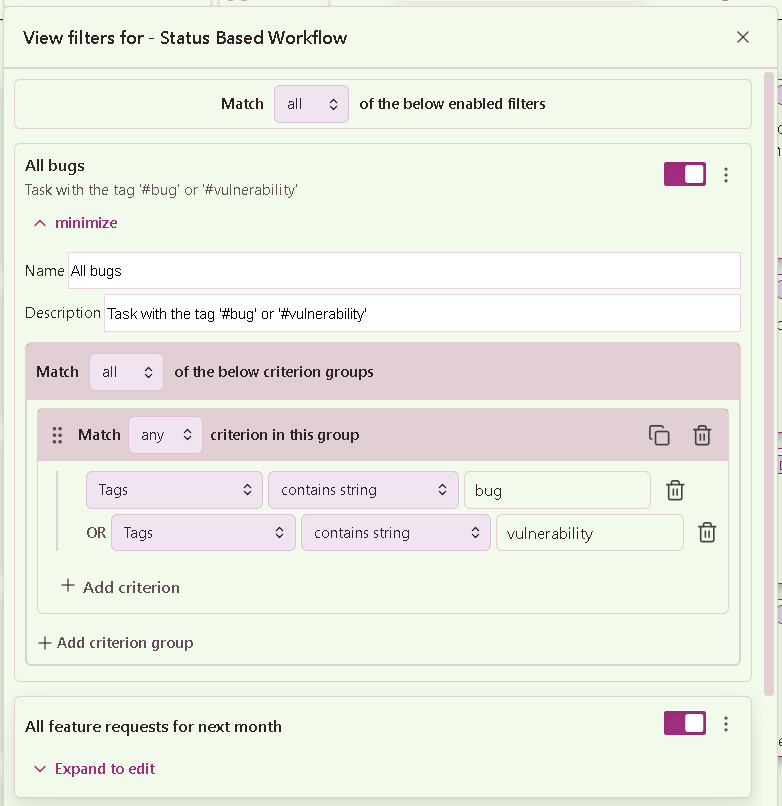
Here you can see that, we have only one criterion group. And inside it, we have two criterion.
The first criterion will find out all the tasks which has the tag “#bug”. And, the second criterion will find all the tasks which has the tag “#vulnerability”. Now, since both these criterion are combined together using the OR Boolean logic, hence the criterion group will allow all the tasks which has either the tag “#bug” or “#vulnerability”. And since, there are no more criterion group inside this quick filter, only these tasks will be collected and will proceed for the next filter operation.
Second quick filter :
Lets understand what does the second quick filter’s configuration configuration contains :
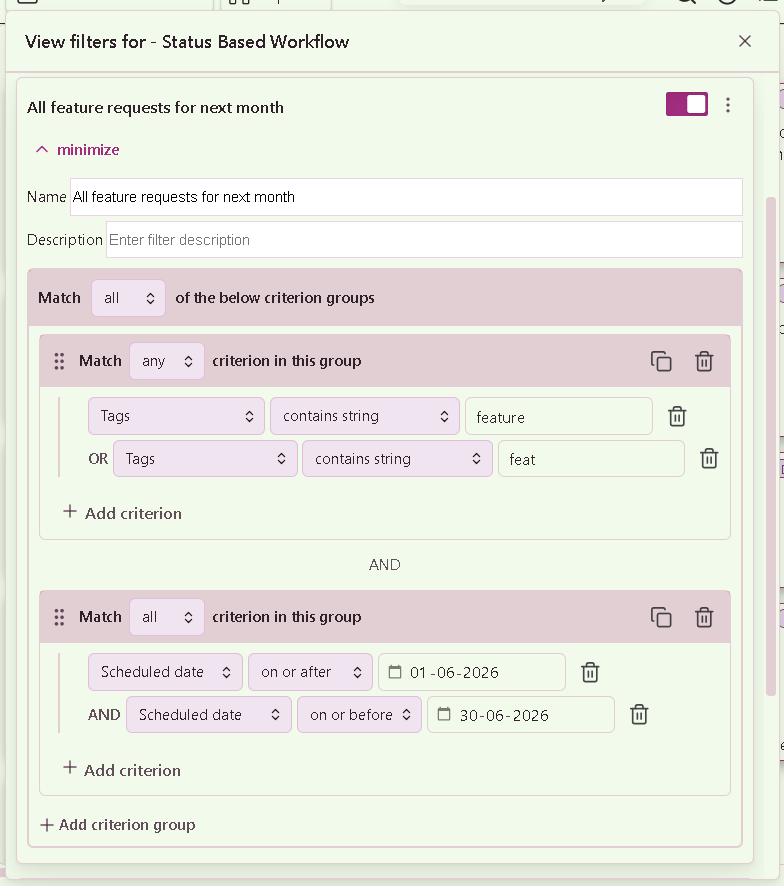
For this second quick filter, we have two criterion groups and they both are combined together using the AND boolean logic. Hence, only the tasks which satisfies both of these criterion group logic will pass though the second filter.
The first criterion group basically says, all the tasks which has either “#feature” tag or “#feat” tag on them are allowed.
The second criterion group will pass all the tasks whose scheduled date is falling within the range 01-06-2026 to 30-06-2026. Which means the month of June of 2026. Here, we have kind of created a range, because both these criterion are combined together using the AND boolean logic. So, the tasks which are scheduled other than the June month will not pass through this filter.
The complete advanced filter :
Finally, as we can see from the first image, both these quick filters are combined together using AND boolean logic. So, basically, we are saying that, the task should satisfy both these quick filters to pass through this complete View level advanced filter. And Only, those tasks we will see inside our specific view to which we have applied these quick filters.
And, since they are quick filters, you can easily toggle them ON or OFF, to see certain tasks at ease.
Advanced Filter Hierarchy
Now, the reason why I call “a collection of Quick filters”(multiple quick filters) as “Advanced filter”(a single Advanced filter) is because, an “Advanced filter” can be imagined as a funnel, inside which we will pour a lot of tasks and only a certain tasks will pass through it, so that they can be visible inside you views. You can apply this advanced filter at three levels :
- Board level
- View level
- Column level - Only applicable for Kanban view.
Below image will show you, how hierarchy works when both level of advanced filters has been applied :
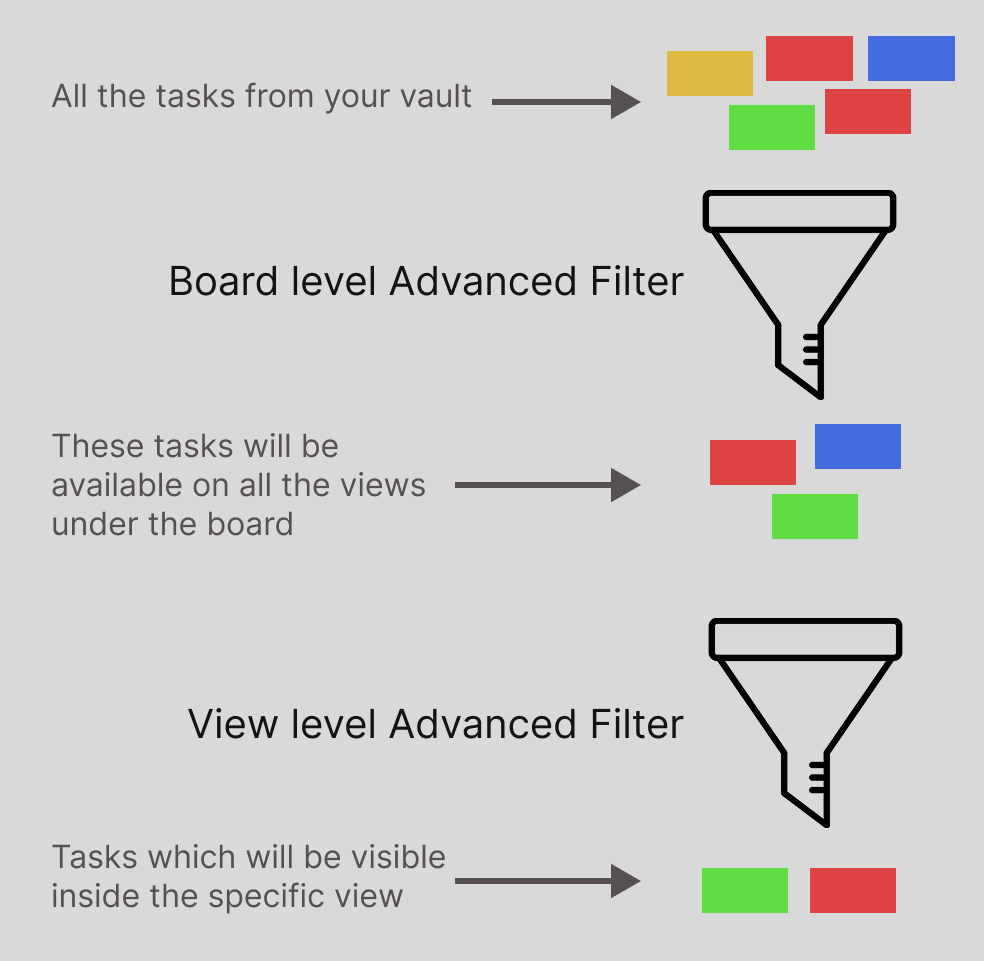
I hope this gives you the complete picture of how the Advanced filter works in Task Board plugin. To understand the use-cases of this Advanced filter for each of the component, please refer the individual docs page.