Column Sorting
v1.8.0
This plugin offers column sorting feature at an individual column level. You can decide what kind of filtering each and every column individually should have inside your Kanban view.
The sorting configuration can be simple, with only one criterion. Or you can have multiple sorting criteria for the same column in the order of preference you want it to be applied.
To understand the complete UI of the Column sorting config modal and how to access it, read this wiki : Column sorting config modal.
What is the default sorting criteria ?
By default, when no sorting has been configured for a particular column, the plugin will sort the tasks based on two criteria :
- Criteria 1 : When was the task last updated.
- Criteria 2 : The position of the task inside note. (Only applicable for inline-task).
When you will update any task, it will appear at the top of the column. Followed by the task you updated before the task on top and so on.
For inline-tasks, since they are scanned and stored as per their position inside the note and since we dont keep a track or when was the specific inline-task updated last time, for this reason, you will notice that, when you will make any changes even to a single inline-task from a particular note, all the inline-tasks from that note will be sorted on top in the column. In other words, you can say that, the tasks are sorted based on the modified-time property of their parent note.
Hence, if you have all task-notes in your vault, then you will automatically get the sorting order in the last modified time criteria by default for all your tasks.
How does the configuration works ?
As of the latest version, we can apply sorting on the following criteria from the task properties :
- Manual order
- Title
- Id
- Status
- Priority
- Tags
- Start time
- Created date
- Start date
- Scheduled date
- Due date
- Completed date
- File path
The config modal allows you to use one or more task properties from the above list to create a sorting criteria. If a single property has been used then its straight forward sorting. For example, if you have applied the sorting for the property “Tags”, then it will sort them based on the tag’s text alphabetically, the default direction of sorting will be Ascending, which will be a, b, c, …. But you may change this to Descending order, which will be z, y, x, …
Similarly, for all the other task properties, based on their type, they will be sorted either in Ascending or Descending direction, as you have configured them.
Now, on top of the single sorting criterion, you can apply more criteria. Lets understand this with an example. Say you have applied sorting criteria :
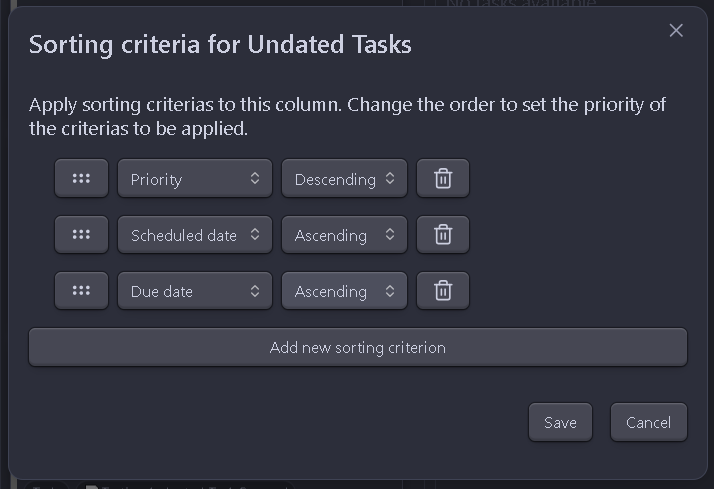
Here, the sorting algorithm will be applied based on the position of the individual sorting criterion.
- The first criterion is for the property “Priority” and the direction is “Descending”. Hence, all the tasks with the highest priority number will be shown first, lets say with priority 5, then all the tasks with priority value 4 will be grouped below, followed by all tasks with priority 3 and so on.
- Next, the algorithm will take all the task which are grouped on the top with priority value 5 and the algorithm will apply the second sorting criterion on these group of tasks. So, now in each group the tasks will be sorted by the “Scheduled date” property and they will be in the direction “Ascending”, which means, the tasks scheduled for today will be on top, followed by tasks scheduled for tomorrow, and so on.
- Then, since there is another third sorting criterion, it will be applied in case there is a group of tasks which has the same “Priority” value and the same “Scheduled date”. Lets say, there are 3 tasks which has the same priority value and same scheduled date, then the algorithm will check which of these three tasks are due for today, if found that task will be on the very top inside the column, followed by if there is a task with due date tomorrow, and so on.
This way, using multiple sorting criteria you can easily get a very detailed and efficient organization of your tasks, so you can work on the tasks which matter the most and has high importance for you.
Why “Manual order” is different ?
For the “Manual order” feature to work properly, make sure that you have id property on every task inside the column to which you are applying this criteria. You can also make use of the “auto apply unique ID setting”, so each task automatically gets a unique ID.
An ID on every task is very important for this feature to work, otherwise you might see some weird behavior, or sometimes the tasks without an ID might disappear from the column. In which case you will need to manually refresh the view or remove the sorting criteria temporarily to troubleshoot.
Task Board is a “Non-static” plugin. That is, unlike other Kanban plugin, the data inside the Task Board views will change, when you will make any changes to your tasks outside of this plugin. The tasks are segregated into different columns and sorted based on the property value on the tasks. If those property value changes, then the task card will be shown at a different place. Hence, Task Board never remains as a static view, if you have made any changes to your tasks, directly inside the notes.
To solve this problem, so that you can get the same feel which you are getting inside the plugin like Kanban plugin, Task Board has implemented a feature so that all the tasks maintain their position inside the column as they were before, even if the tasks has been updated either directly inside the notes or through this plugin itself.
This feature is very complex, even to this date. Because, to implement this feature, Task Board is keeping a track of the positions of the tasks inside the column to which you have applied the sorting criterion as “Manual sort”. And, hence, its obvious that, if you have set the column to use “Manual sort” criterion, you cannot apply more criteria to this column.
Another problem
There is another problem with having this functionality inside Task Board. As I have already explained, Task Board is a “Non-static” plugin. So, new tasks will automatically show-up inside a particular column based on the configuration of that column. And, if you have applied the sorting criteria as “Manual sort” to this column, then how are we supposed to show this new task which you might have created inside your note or you have imported from other device etc. ?
To solve this problem, we have simply decided that, whenever a new task shows up automatically inside the column, it should be always shown at the top of the column, so that user get to know a new task has came up inside their particular column and then the user can decide whether they want it to move to other position inside the same column or it should be moved to to a complete different column, depending on their workflow.
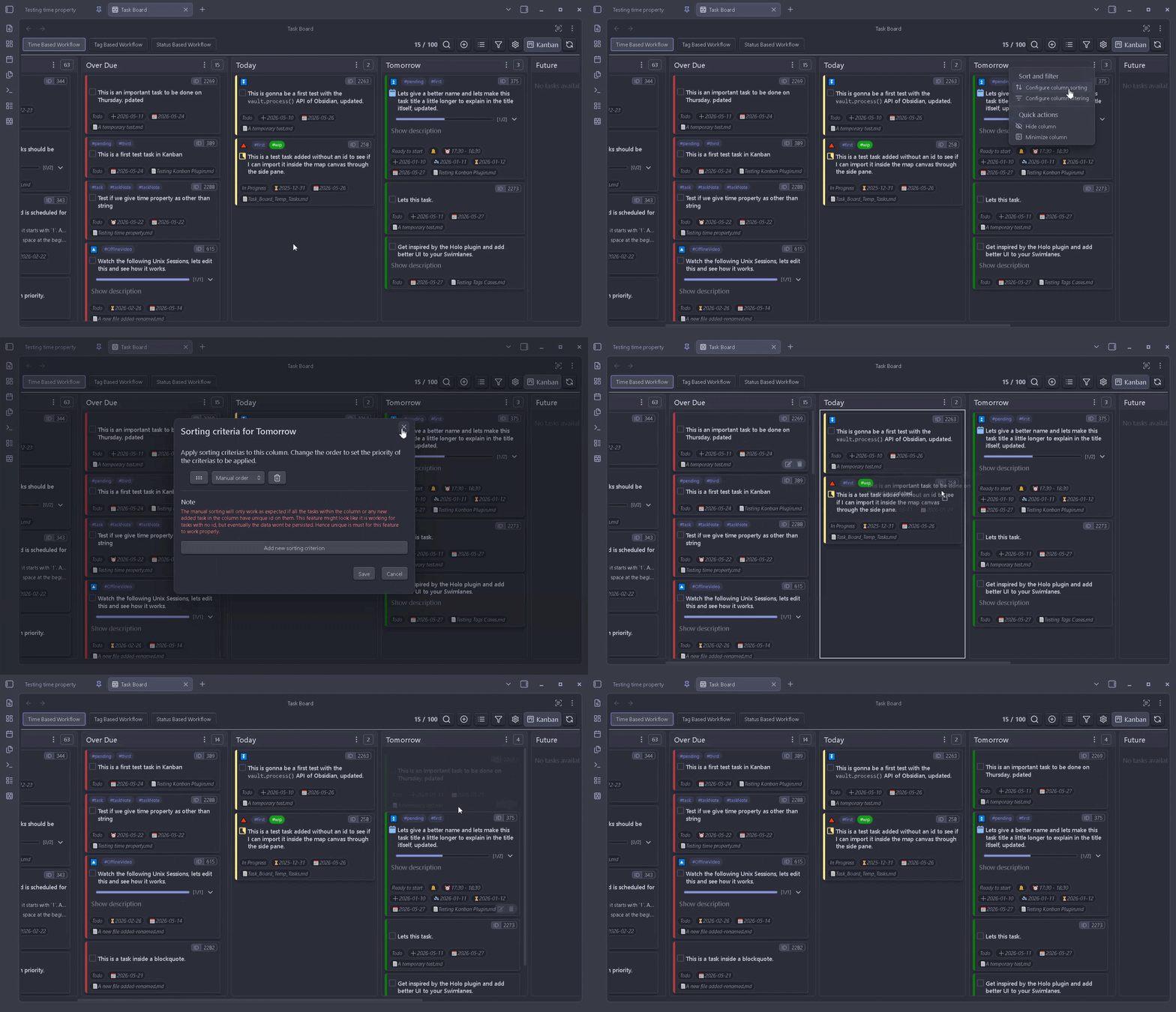
And ofcourse, this problem will only be faced, when a new task has automatically appeared or an older task(s), which was earlier not present in this column, has been modified such that their properties are now matching the column configuration. But if you are using the drag and drop feature of this plugin, then you should not face this problem, as you will be moving the tasks manually and everything will be on your watch. You will going to get a “drop indicator”, so you can drop the task at a specific position directly. See the below demo video :
Whats coming in the future ?
This sorting feature is going to get way more advanced once Task Board is able to support your custom properties. As well as, few more enhancements such as which tasks has greater number of tags, etc.