Advanced Filter Menu
This is a floating menu which you can open for and is used by the following two features :
Depending on your device and screen resolution, this component may present itself as a modal. In the below image example you can see that, this component has been presented as a floating window :
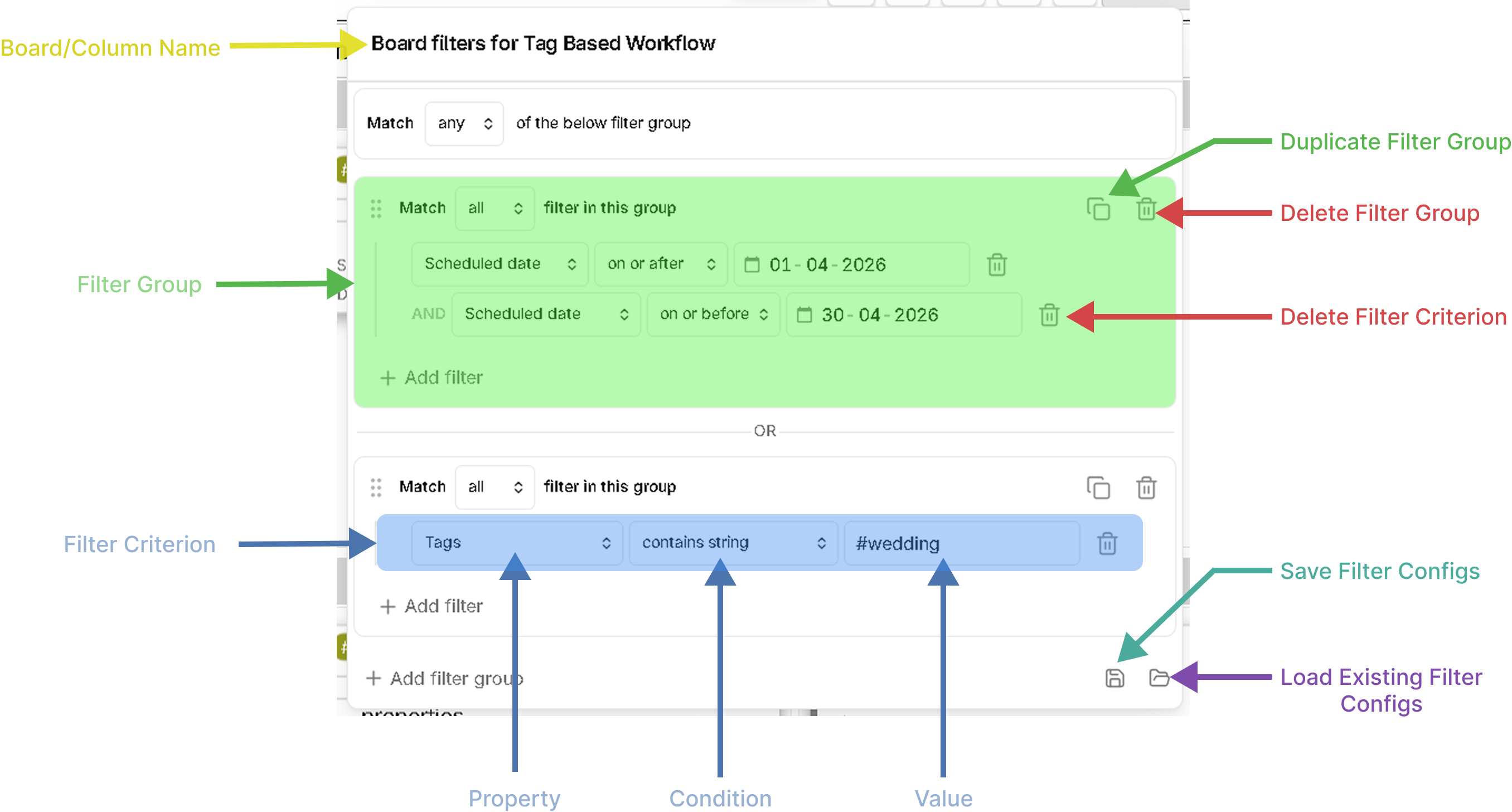
Also, after you have made any changes to the filter configs, you dont have to click on any save button. Simply close this component and your filter will be applied to the board or the column for which you have opened this feature.
This docs page only explains the various UI elements of this feature. To understand the working and other aspects of this feature, refer the following page : Advanced filter.
Sections
This component shows you the multiple filter criteria you have applied for either the board or the column.
Filter Criterion
You can apply a filter criterion on various properties of the task. To add a new criteria, you should have atleast one filter group, because a filter criterion can be only applied inside a group. Its not necessary that you should have multiple filter criteria inside the group, but to even add a single filter criterion, we should add it inside a filter group.
To add a new criterion, click on the ➕ Add filter button which you will see inside the filter group, as shown in the above example image.
When a new filter criterion is created, you will need to configure the following characteristics :
- Property : (Drop-down) This will be the property of the task on which you want to apply a filter.
- Condition : (Drop-down) How this property should be used to filter your tasks.
- Value : (Drop-down or Text box) Based on the condition you have selected, in this field you will be prompted to enter/select a value.
You can delete a single filter criterion using the delete button.
Filter Group
The additional feature of this component is that, you can group multiple filter criteria together to form a filter group. This helps in building complex logics which you might need to filter specific tasks on your board or column. Please go through the following example to understand various use-cases of this filter grouping feature : How Advanced Filters work.
You can delete the whole filter group using the delete icon button, Delete Filter Group Button, which you will see inside each filter group.
As well as, if you have a very big and complex filter group and you like to duplicate that filter group based on your use-case. You can do the same using the Duplicate Filter Group Button which will be present just besides the delete icon button.
Save and Load filter
One important clarification I would like to make here is that, the whole configuration which you will see inside this component, which is basically the combination of filter criteria and filter groups, this complete configuration, collectively will be known as a Filter for Filter Configs.
That is, you are applying a filter, which is a combination of complex filter groups, which in turn is a combination of complex filter criteria.
Save Currents Configurations
If you have a complex filter and you like to save this complex filter because you decided to make some changes to the current configurations. Or maybe you just want to keep a backup of the current configurations. Or you want to re-use this configurations to some other views within the board, then you can do so by saving the current state of the configuration using the Save Filter Configs button, which you can find at the bottom right corner.
Load Existing Configurations
Besides the Save Filter Configs button you will also see a Load Existing Filter configs button, using this button you will be able to load all the previously saved filter configurations.
Please note that, when you will load an existing filter config. It will replace the current filter configs. So, you should take a backup of the current filter configs, if its important for you, before loading the saved configs.
This problem will be fixed in the upcoming enhanced version of this feature : Advanced Filter in Task Board V2.