Editing existing task
There are two ways to edit the old content of your task:
- Edit the item within the markdown file itself: Edit Task from File.
- Via the Edit Task Window (This can be done from your board, even without opening the source markdown file)
About the Edit Task Window
This feature exists to allow you to directly edit the content and properties of a task, directly from your board, without the need of opening the parent markdown file. All changes made within the window will be reflected in the markdown file.
This window also contains a Live Embedded Editor for a real-time preview of edits made.
How to use the window
Step 1: Find the task you would like to edit and click the Edit Task button/icon. This will open the Edit Task Window.
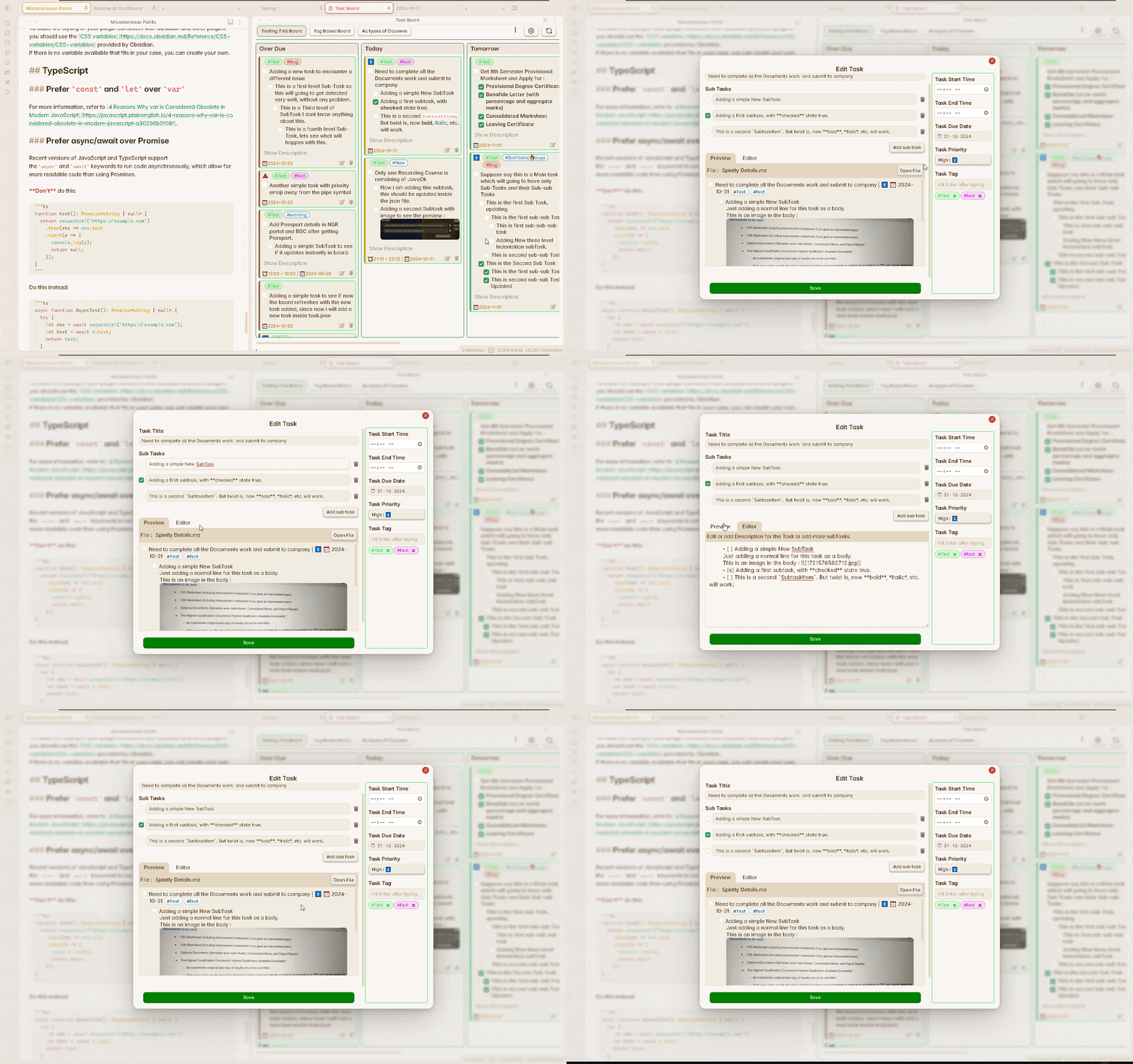
Step 2: Edit any field you would like from the appropriate input field. You can also add values to the empty fields, add descriptions, add more sub-tasks, etc.
Step 3: Select the “Save” button to save changes made. (If not, the user will be given the opportunity to discard changes or go back and save)
To learn more about the Edit Task Window, including detailed explanations of each field, check here: Edit Task Window
Live Editing Features
v1.5.0
The Task Editor now provides:
- Live Embedded Editor: See changes in real-time as you type
- Dual View: Switch between raw editor and live preview
- Tag Suggester: Easily add tags with autocomplete
- Syntax Highlighting: Better visibility of task properties
- Real-time Validation: Immediate feedback on task format
Safe Editing
v1.6.0
Content Safety: Task Board now includes a safeguard feature that performs proper content matching before updating your files. A Content Compare modal shows you the changes before they are applied, ensuring you never lose content accidentally.
Edit Button Modes
v1.1.0
You can configure what happens when you click the edit button:
- Open the Task Editor (default)
- Open the note in a new tab
- Open the note in the current tab
- Show hover preview
- Other navigation options
Scroll to Task
v1.5.0
When you click on a task, Task Board will scroll to the exact location of the task in the note and highlight the first line, making it easy to find and edit tasks in large files.