Task Board Features
Below are some of the Plugin’s key features.
Task Formats
This plugin supports all kinds of checklist item formats. That is any formatted line which Obsidian renders as a checkbox element will be considered as a inline-task. Whether it may start with characters like ‘- [ ] ‘, ‘* [ ]’, ‘+ [ ]’ or even numbers like ‘1.[ ]’, ‘1)[ ]’, etc. These checklist item can even be indented using multi-level indentation, can be inside a codeblock or can have sub-tasks and description.
More details here: Task Formats
Adding a Task
There are two primary ways you can add a task to the Task Board.
First is the usual old method of directly writing down the task inside the markdown file.
The second method is using the Add New Task window to add different properties to the task. It uses input elements to make the adding properties easier and ensures the format comes out properly.
More detailed information here: Adding new Task
Editing a Task
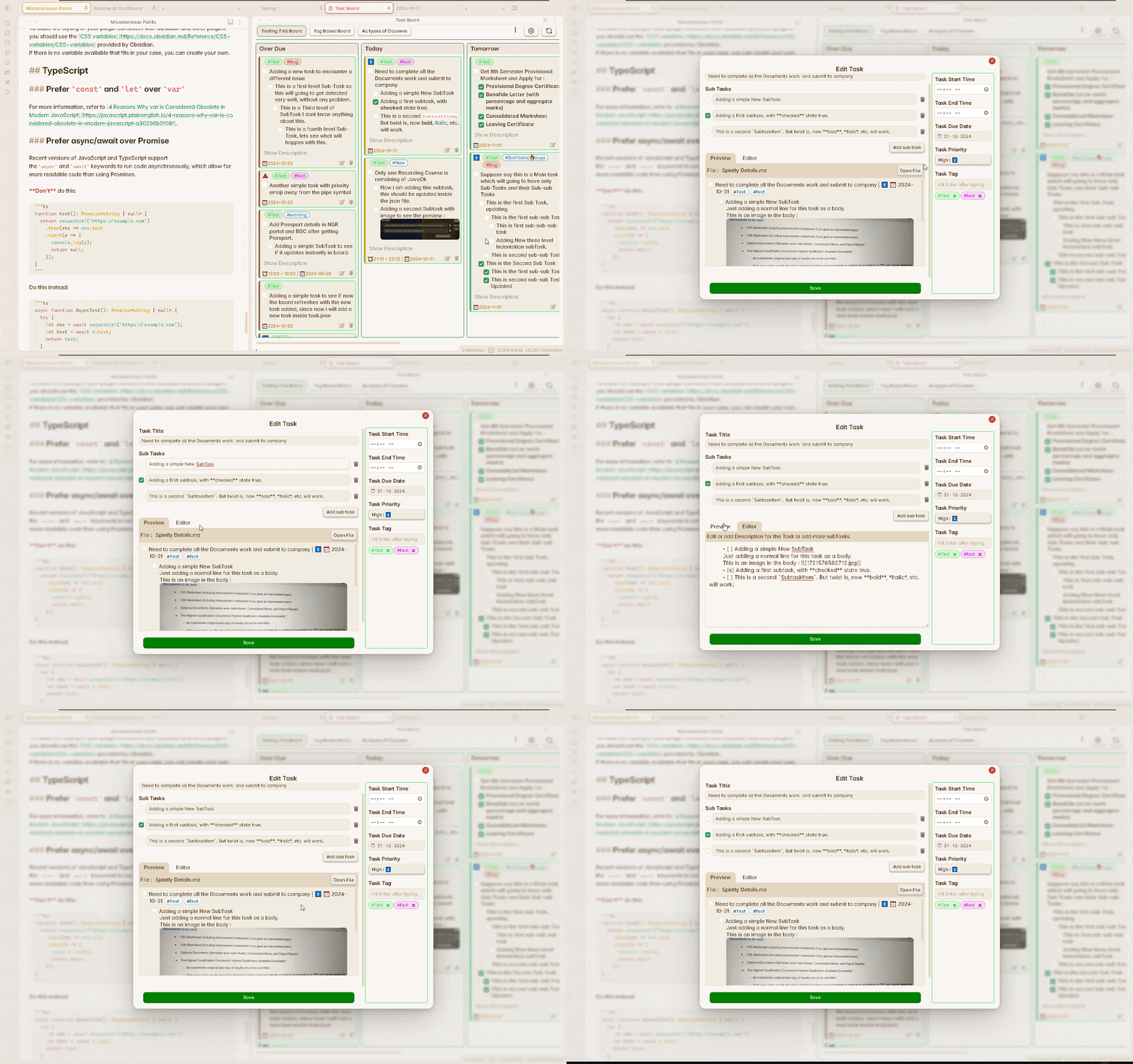
Edit task directly from the Task Editor. You can add different properties to the task, add more subTask, add or edit description to the task. And the changes will be return to the parent markdown file exactly the way you see it in the preview.
More detailed information here: Editing a task
Marking as Complete
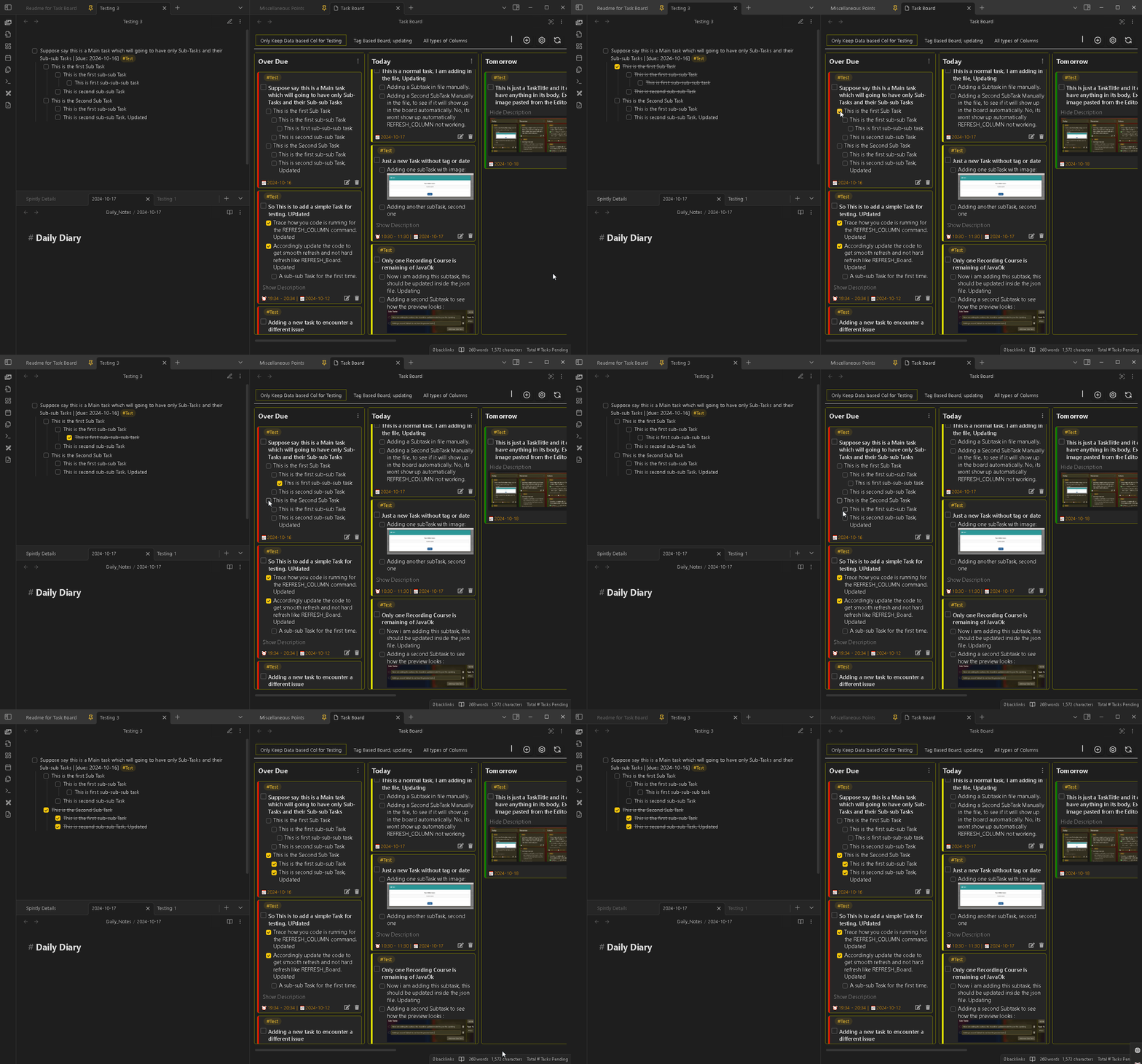
Any tasks marked from the board as complete/incomplete will appear in real-time in the source/parent markdown file.
More detailed information here: Marking a task complete
Deleting a Task
Tasks can be deleted directly from the board via the Delete icon. This will also delete the item from the parent markdown file.
Archive Tasks
Tasks can be archived instead of deleting, if you prefer. This can be done by moving the items to a dedicated Archive note or by commenting them out of the original note. The choice is yours.
More detailed information here: Archive Tasks
Search Tasks
Search and filter for specific tasks via the Search functionality. Filtering is done in real-time and will return back to normal once you delete the contents of the search field.
More detailed information here: Search Tasks
Plugin Integrations
Task Board is intended to seamlessly integrate with several popular Obsidian plugins including:
- QuickAdd
- Tasks
- Reminder
- Highlightr
This allows users the opportunity to integrate some of their powerful features into their personal workflow.
More detailed information here: Plugin Integrations
Mobile Support
Task Board is designed to work well on mobile devices. The UI/UX has been optimized with phones and tablets in mind. Manage your tasks on the go with touch-friendly controls and responsive layouts.
More detailed information here: Mobile Support
Applying Filters
Task Board offers several filtering functionalities:
- Global Filters for Scanning: Scan globally to include or exclude specific files, folders, and tags.
- Board Filters: Board Filters allow for on-board filtering to further locally refine which tasks appear on your board.
- Column Filters will be an upcoming feature.
Multi-Language Support
The plugin is currently configured to support more than 20 languages with the intention of more languages in future releases.
Note: Proper care has been taken to translate the default English language into other languages, online tools have mostly been used for translation, therefore precise translations isn’t guaranteed.If you notice any errors in translation, your help would be greatly appreciated. More details on how to contribute to language translations here: Contribute To Language Translation.
Re-Scan Vault
This is a special feature to manually scan your vault to detect any undetected changes. This is particularly useful when first initializing or when you update the global Scan Filters.