Getting Started
Step 1: Opening the Task Board
After proper installation, Task Board can be opened by clicking the new icon on the ribbon bar:
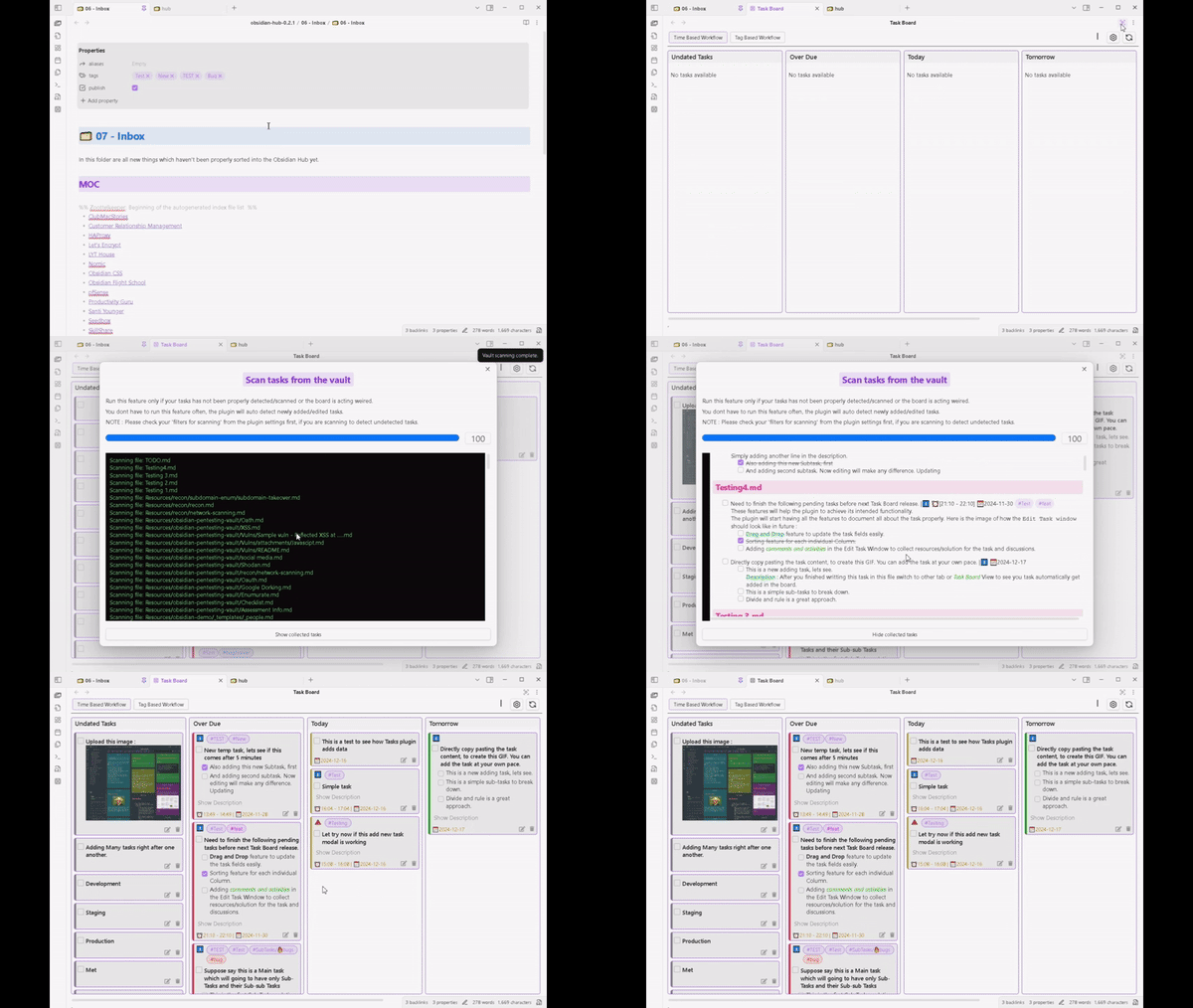
Note: in the gif above, you can also see the manual vault scanning for the next step.
Task Board can also be opened by:
- Using the command
Open Task Boardfrom the Command Palette. - Assigning a shortcut for the command from the Hotkey tab in Obsidian’s general settings.
Step 2: Scan tasks for the first time
Click on the Scan Vault Modal button. It is located inside the “View Header” in the top-right corner. This will open a window that can manually scan all of the files in your vault for tasks.
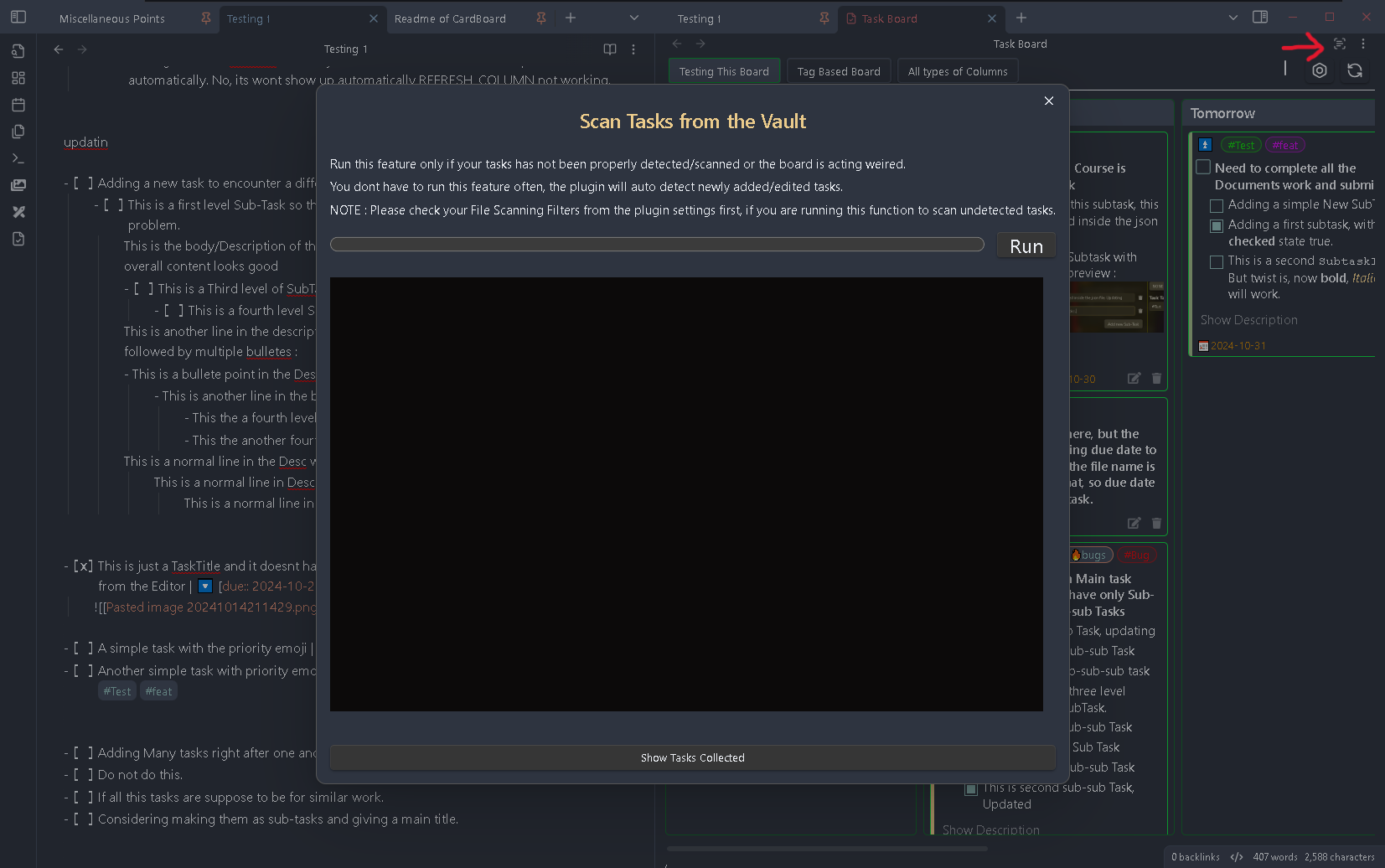
NOTE: You won’t need to use this “Scan Vault” feature often. It is only for fresh install or for special cases like troubleshooting or solving any other issue. Learn more here: Scan Vault Feature
All tasks with the accepted format will be scanned and will be displayed on the board based on the specific Column Criteria.
Afterwards, use the Scanning Filters from the main settings to only scan specific files and ignore other files.
There are already two predefined board for your convenience as an example. Feel free to delete or edit the boards and create your own boards. Check out more information on Board here: Creating Boards
Enjoy the plugin !